

hello@yourapp.com) instead of Dreamlit’s default sender.
This improves deliverability and looks more professional to your users. You’ll need access to your domain’s DNS settings to add a few essential records (DKIM, SPF, DMARC) that signal to email providers that your emails are legitimate.
Setup
Go to Settings → Email Domains and click Add domain. Enter your domain—we recommend a subdomain likemail.yourapp.com.
From there, you can verify your domain automatically or manually.
Automatic setup (recommended)
Dreamlit can configure your DNS records for you. Just click Verify with your DNS provider, sign in to your provider, and authorize the changes.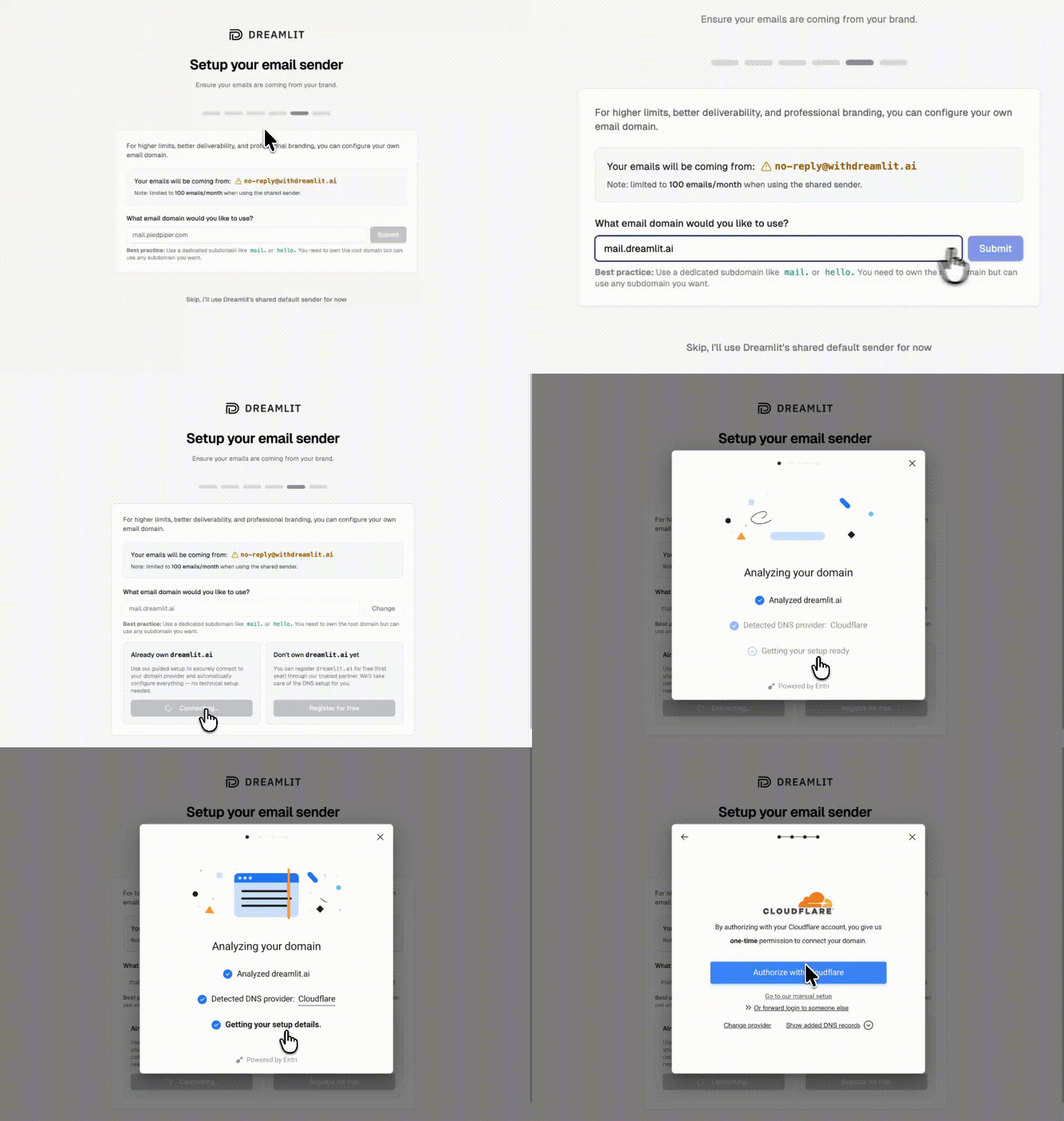
Automatic DNS setup—no manual records needed
Automatic setup is available for supported DNS providers. If your provider isn’t listed, use manual setup below.
Manual setup
If your DNS provider isn’t supported for automatic setup, you can add the records manually. Dreamlit shows you exactly what to add.1
Copy the DNS records from Dreamlit
After adding your domain, Dreamlit generates the required DNS records (DKIM, SPF, DMARC). Copy these to add to your DNS provider.
2
Add records to your DNS provider
Log in to your DNS provider and add each record. Here are instructions for common providers:
Cloudflare
Cloudflare
- Go to the DNS tab in your Cloudflare dashboard.
- Add a new record for each entry shown in Dreamlit:
- Type: CNAME or TXT (depending on the record)
- Name: Provided by Dreamlit
- Value: Provided by Dreamlit
- Save your changes and wait for propagation.
GoDaddy
GoDaddy
- In GoDaddy, open the DNS Management page.
- Click Add under “Records.”
- Enter the record details from Dreamlit, including Host (Name) and Value.
- Save the record and wait for DNS propagation.
Namecheap
Namecheap
- Navigate to Domain List → Manage → Advanced DNS.
- Add each Dreamlit record in Host Records.
- Save records and wait for propagation (usually a few minutes to a few hours).
3
Verify in Dreamlit
Once you’ve added all the required DNS records, return to Dreamlit’s Email Domains page and click Verify next to your domain.
Troubleshooting: Verify your DNS records
Troubleshooting: Verify your DNS records
If verification fails, you can confirm your DNS records are set up correctly using these commands or a free DNS lookup service like MXToolbox.
Replace
Replace
macOS / Linux
macOS / Linux
mail.mydomain.com with your actual domain.Windows
Windows
mail.mydomain.com with your actual domain.4
Start sending
Once verified, select your domain when creating email workflows. Your emails will now come from your own brand.
Why these records matter
We want you to have the best possible email deliverability. The records you add serve different purposes:- DKIM (DomainKeys Identified Mail): Attaches a cryptographic signature to your outgoing emails, proving they originated from your domain and haven’t been tampered with.
- SPF (Sender Policy Framework): Specifies which mail servers are allowed to send emails on behalf of your domain. This helps receiving servers know legitimate senders.
- DMARC (Domain-based Message Authentication, Reporting, and Conformance): Builds on SPF and DKIM to give you greater control over how ISPs handle unauthenticated mail from your domain.
You’re all set! Domain-verified email sends are an excellent step toward building trust and ensuring your notifications reach the inbox.