

Publish from your agent
Ask your connected agent to prepare publishing. It callsprepare_publish, which validates the draft and returns a preview URL, warnings, and a confirmation payload. Review the result. Only after you explicitly approve does the agent call confirm_publish with that payload.
If the draft changes after preparation, prepare it again before confirming. Edits to published workflows remain drafts until published.
Dashboard alternative
Click Publish in the top right of the workflow, review the confirmation dialog, then confirm. You should see a confirmation dialog like this: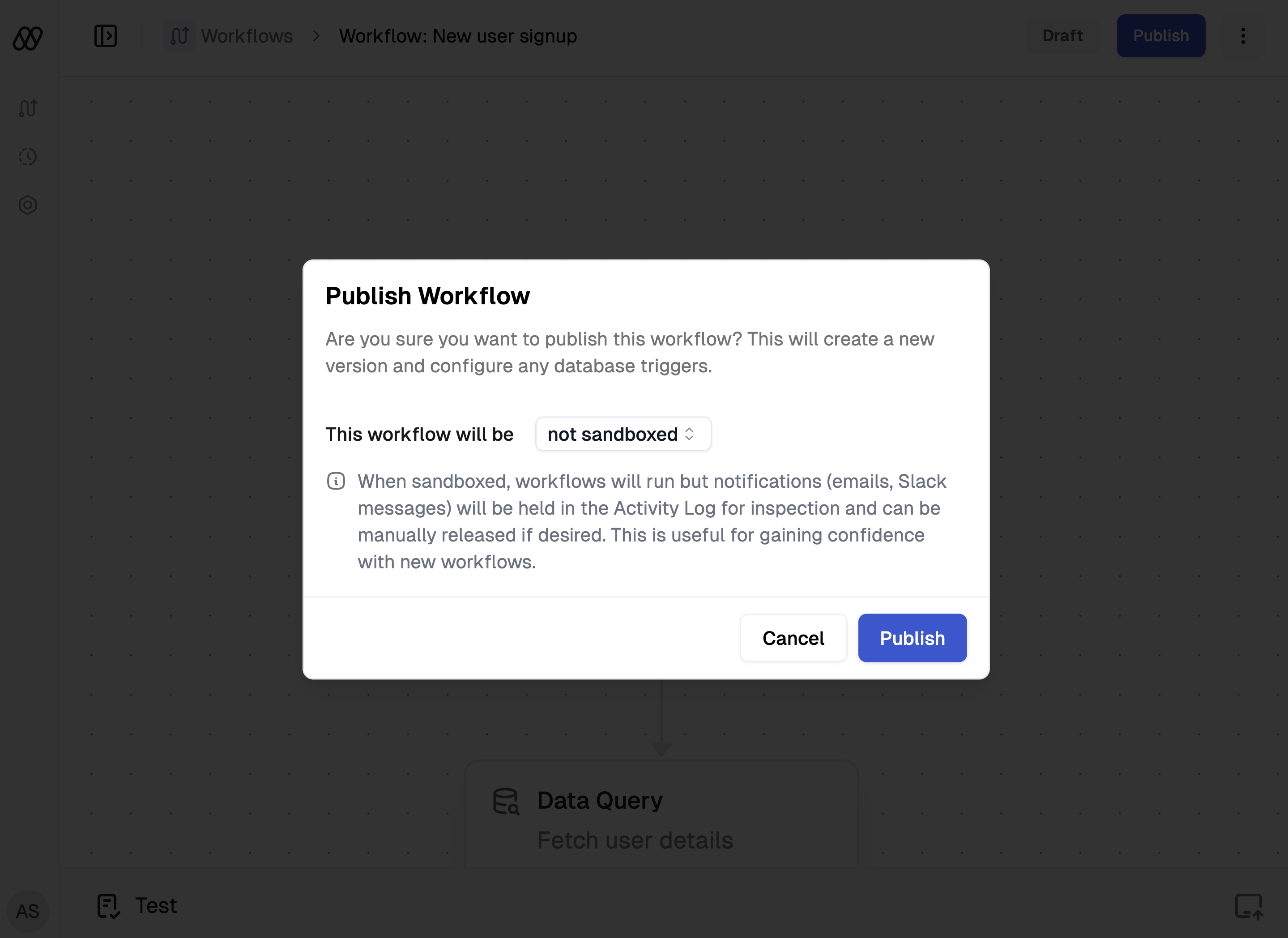
Clicking the 'Publish' button in the top right of the screen activates your workflow.
dreamlit schema. Recurring workflows run on their schedule, broadcasts at the scheduled time, and Supabase Auth workflows use the enabled auth hook.
To prevent any unintended side effects, any currently inflight workflow runs will continue
to run in the version of the workflow that it started from.For instance, if there is a workflow run currently in the middle of a wait step, and you publish a new version of the workflow
which removes that wait step along with its descendants, only future workflow runs will be affected. The currently executing
run will continue to run in the previous version of the workflow.
Sandboxing a workflow
When you publish a workflow, you’ll have the option of publishing it in sandbox mode. This means that your workflow will be activated and will kick off runs, but it will not automatically release any notifications. Instead, these notifications will be held for manual review and optional release. See Inspecting inflight workflows for more information.Workflow settings
Selecting the button in the top right of the screen will open up the settings panel. Here you can:- Switch sandbox mode on or off.
- Unpublish a workflow, which removes its triggers and stops new runs from starting.