

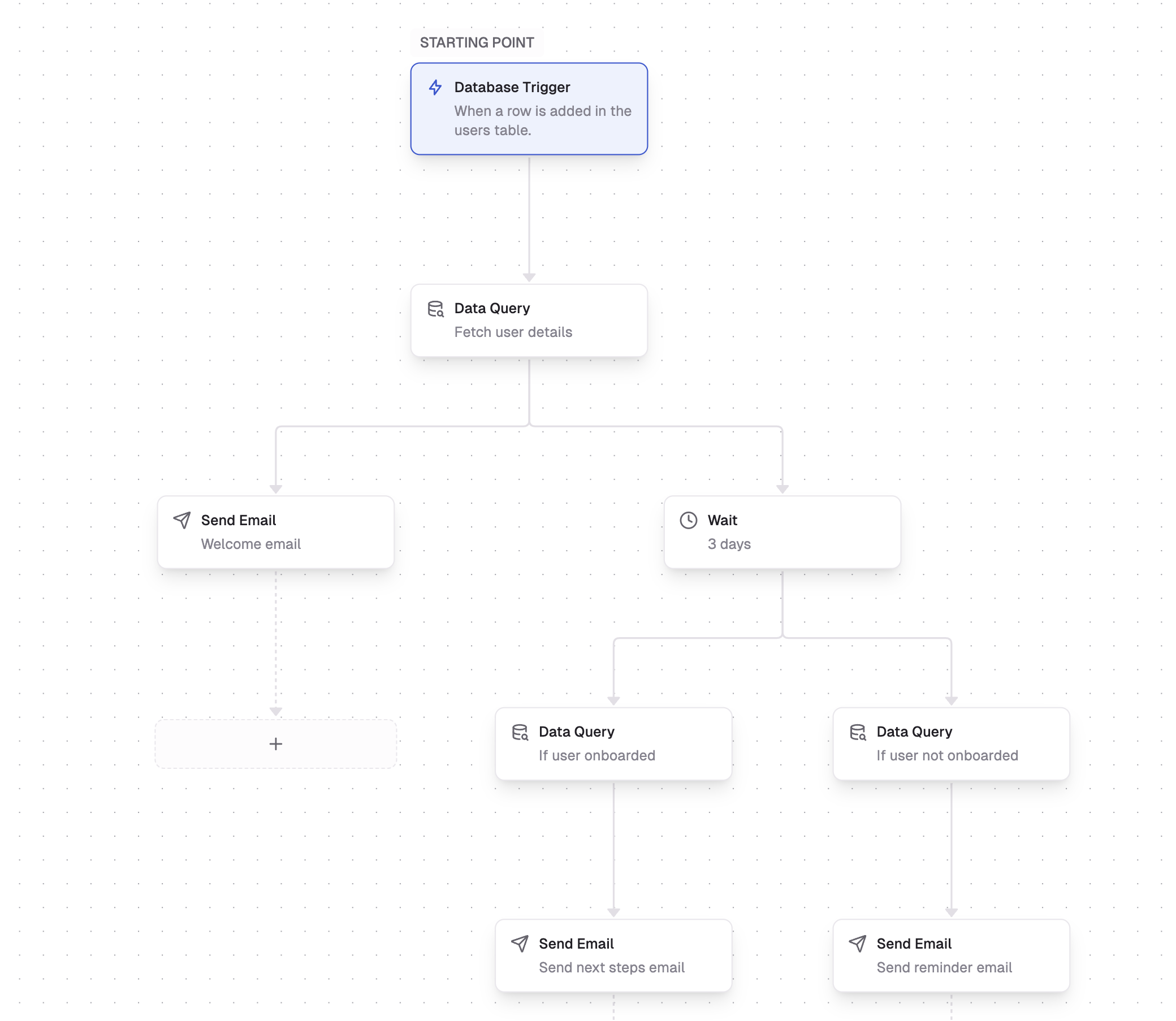
Sends a welcome email to new users and a finish onboarding email after 3 days or a next-steps email if they've already completed onboarding.
Data flow
Each step in the workflow receives data (often a single item, but potentially multiple items). For instance, if your trigger picks up a row from a database table, you’ll get a single row as your initial input. You can then add more steps—like a Data Query—to join or fetch additional data. This means you can configure a single trigger event to fan-out to many (potentially thousands) of notifications, and Dreamlit will handle this for you. Use cases include:- a comment is added to a post, and you want to notify all other commenters
- a message posted in a groupchat, and you want to notify all members
- an update is made to a listing, and you want to notify all subscribers
Building a workflow
In the workflow builder UI:- Start by selecting a trigger (e.g., a Database Trigger).
- Add steps (e.g., wait durations, queries, Slack messages, email sends, etc.).
Parallel branches
When you add a step, you can choose to add it either as a descendant or as a branch. Each branch runs in parallel, meaning that a failure in one branch doesn’t block the others. If a node in either branch fails, the other branch will continue to run. You’ll see each branch in the Activity Log.Reliability
Dreamlit manages reliability behind the scenes:- Automatic retries: Each workflow step is retried on transient failures with exponential backoff.
- Idempotent: Steps won’t accidentally run twice for the same item.
- Scalable: Parallel branches can handle large fan-outs of data, running steps in parallel without overloading your application or your database.
Next steps
That’s the gist of building workflows in Dreamlit! Once you feel comfortable with the basics,Publishing workflows
How to finalize your workflow so it starts running live.
Testing interface
Inspect and debug your workflow’s steps in real time.
Steps
Learn about each type of step (trigger, wait, query, email, Slack, etc.).