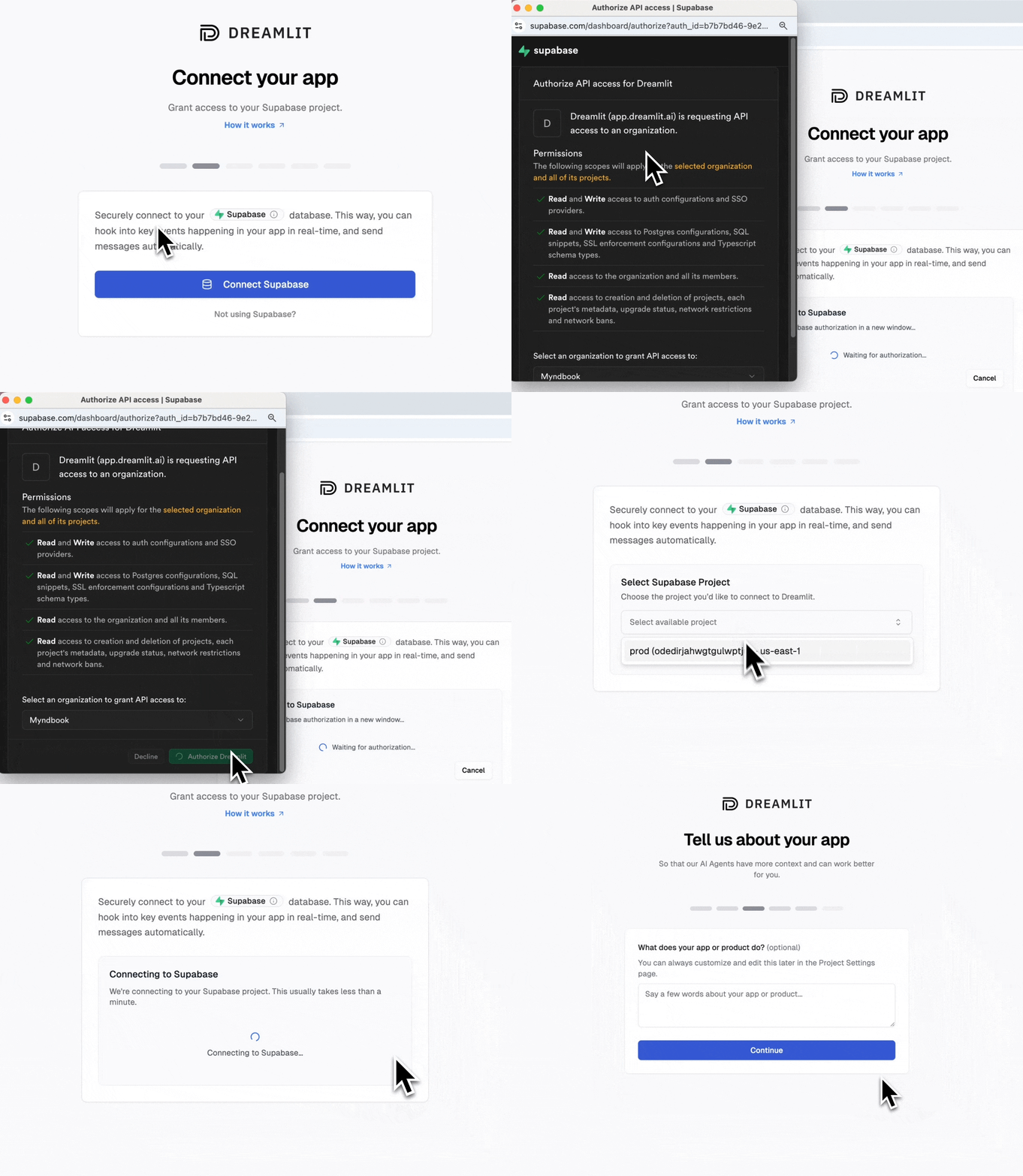
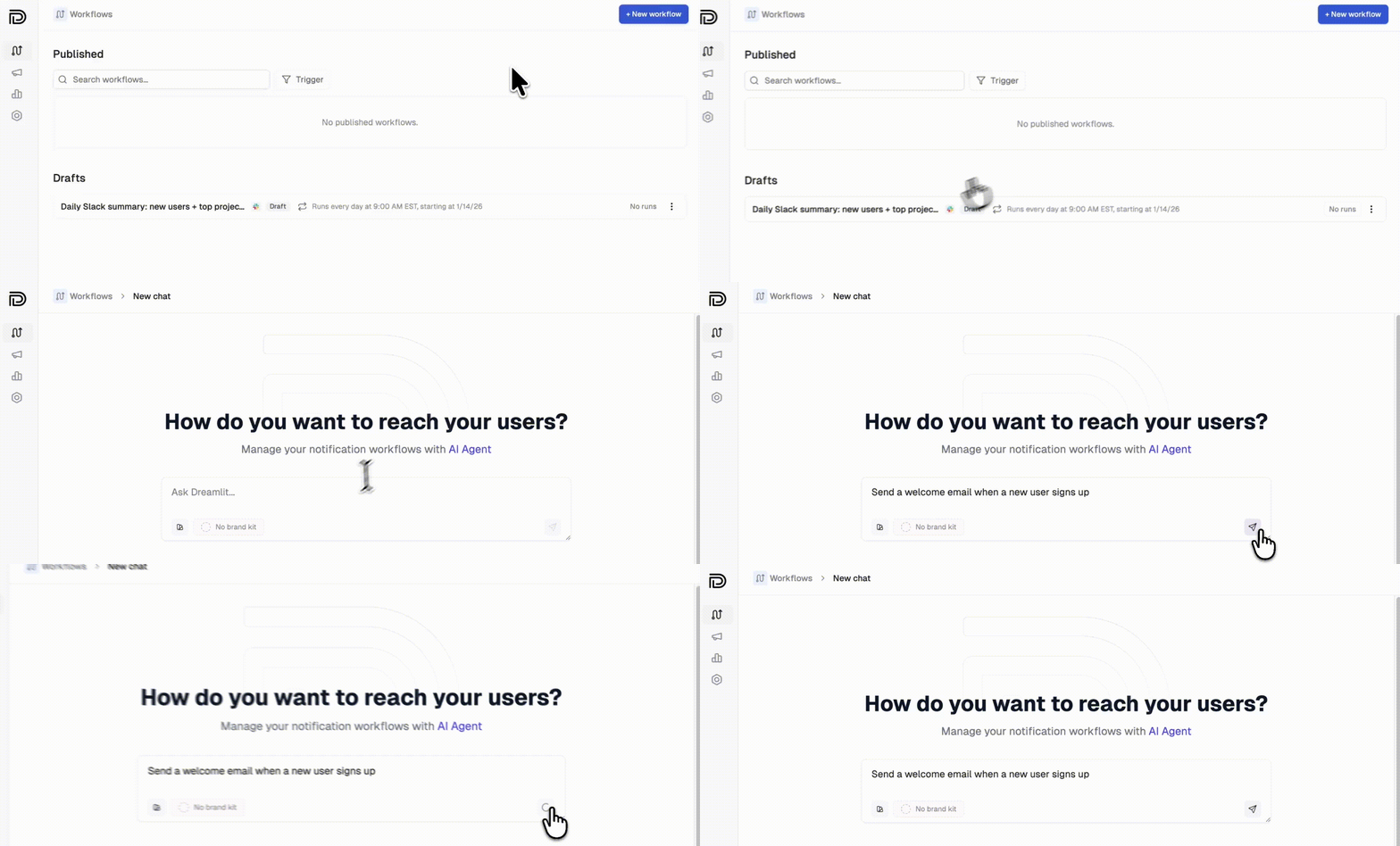
v0 turned your prompt into a production-ready app. Dreamlit does the same thing for email: describe what you want, and it generates the complete workflow.The two tools complement each other naturally. v0 generates your frontend and API routes. Dreamlit securely connects to your database (through the Vercel Marketplace) and handles notifications separately:
Lead captured → welcome sequence
Purchase completed → receipt sent
Feedback submitted → thank you email
No API calls between them, no shared code, no deployment coupling.
Dreamlit securely connects to your database and uses changes as triggers for emails. v0 supports several database integrations through the Vercel Marketplace.
Here’s an example: setting up a welcome email that sends when someone signs up. You can use this pattern for any workflow where you record data in your database.
Here’s the key insight: Dreamlit securely connects to your database and reacts to changes, not your code. When a new row appears in your users or auth.users table, Dreamlit sends the email automatically.
If you’re using Supabase Auth, users are automatically added to the auth.users table when they sign up. No extra table needed.
If your v0 app already creates user records on signup, you’re done. No code changes needed.If you need to add a field or table for Dreamlit to use as a trigger, prompt v0:
“When a user signs up, add a row to the user_signups table with their email and name”
Or for something like order confirmations:
“When a user completes checkout, insert a row into the orders table with the order details”
Dreamlit triggers emails based on database changes. When prompting v0, focus on getting data into your database. Dreamlit handles the rest.Good prompts for v0:
You want…
Prompt v0 with…
Welcome emails
”Store new signups in a user_signups table”
Order confirmations
”Insert order details into orders when checkout completes”
Comment notifications
”Save comments to a comments table with the post_id and author”
Activity alerts
”Log user actions to an activity table”
You don’t need to prompt v0 about emails at all. Just make sure the data lands in your database, and Dreamlit takes it from there.
Any workflow that triggers on a database change. Check out our use cases for example prompts across welcome emails, order confirmations, reminders, internal alerts, and more.
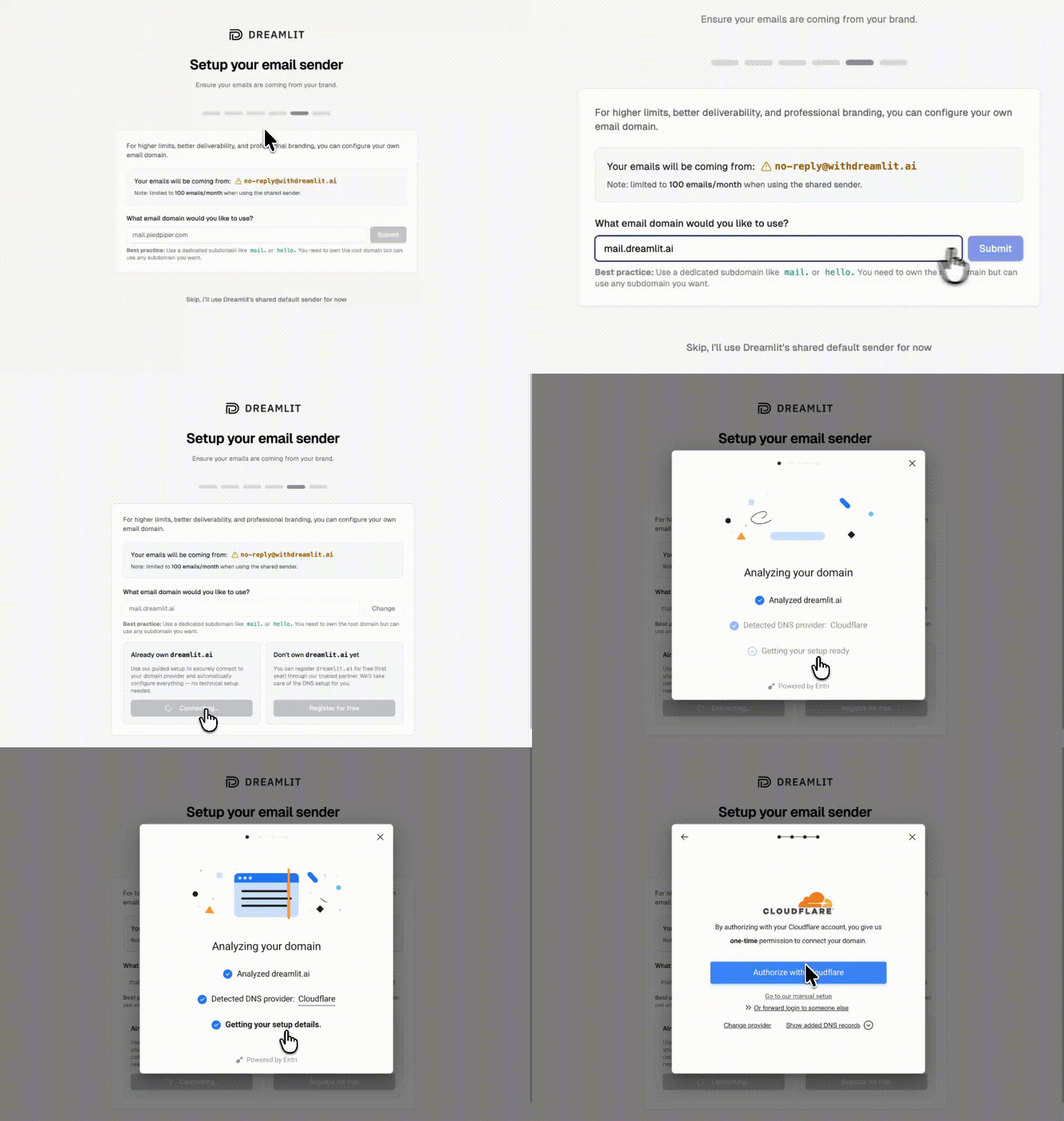
By default, emails send from Dreamlit’s domain. To send from your own domain (like hello@yourapp.com), set up a custom email domain in minutes.
1
Add your domain
Go to Settings → Email Domains and click Add domain. Enter your domain (we recommend a subdomain like mail.yourapp.com).
2
Verify automatically
Dreamlit can automatically configure your DNS records for you. Just click Verify with your DNS provider, sign in to your provider, and authorize the changes.
Automatic DNS setup, no manual records needed
If your DNS provider isn’t supported for automatic setup, you can add the records manually. Dreamlit shows you exactly what to add.
3
Start sending
Once verified, select your domain when creating email workflows. Your emails will now come from your own brand.
You can add one directly from v0. In the chat, prompt: “Add a Supabase database to this project” (or Neon). v0 will walk you through the Vercel Marketplace setup.
We recommend Supabase. It connects to Dreamlit in two clicks via OAuth, and includes auth, realtime, and other features you’ll likely need. Neon works too if you already have it set up.
Usually no. Dreamlit reacts to database changes, so if your app already writes the data you need, you’re all set. If you need to track something new (like order completions), just prompt v0 to add the database write.
Yes. Dreamlit doesn’t run inside your app. It connects directly to your database. Deploy to Vercel’s edge, serverless, or any other runtime. Your email workflows keep running.
Yes. Dreamlit supports Slack alongside email. Just describe what you want: “Notify our team on Slack when a new order comes in.” Learn more about Slack →
Use the preview feature to send test emails to yourself with real data from your database. Your workflow won’t email actual users until you publish it.
What if I’m already using Resend, SendGrid, or another email provider?
Dreamlit works alongside traditional email providers. Since Dreamlit takes a fundamentally different approach (database-driven, AI-generated workflows), you don’t need to migrate off your existing setup. Try Dreamlit for your next workflow and keep using your current provider for everything else.