If Dreamlit can’t read a new Supabase table, it probably needs a SELECT RLS policy for dreamlit_app. Here’s how to add one.
Created a new Supabase table but Dreamlit can’t read it? The most common cause:
Row Level Security (RLS) is enabled on the table but there’s no policy granting
dreamlit_app read access yet.
You connected Supabase to Dreamlit using Dreamlit’s Supabase Connect OAuth flow
Dreamlit created the dreamlit_app user for you
If you self-host Supabase or connected it as a generic Postgres database, your
steps may differ.
This only applies to tables that use RLS, and it’s expected. PostgreSQL doesn’t
support default RLS policies for future tables, so each new RLS-enabled table
needs its own policy.
In Supabase, go to Authentication → Configuration → Policies.If your dashboard uses a slightly different layout, look for
Authentication → Policies.
2
Select the table and create a policy
Find your new table in the Policies page.Create a new policy from scratch.
3
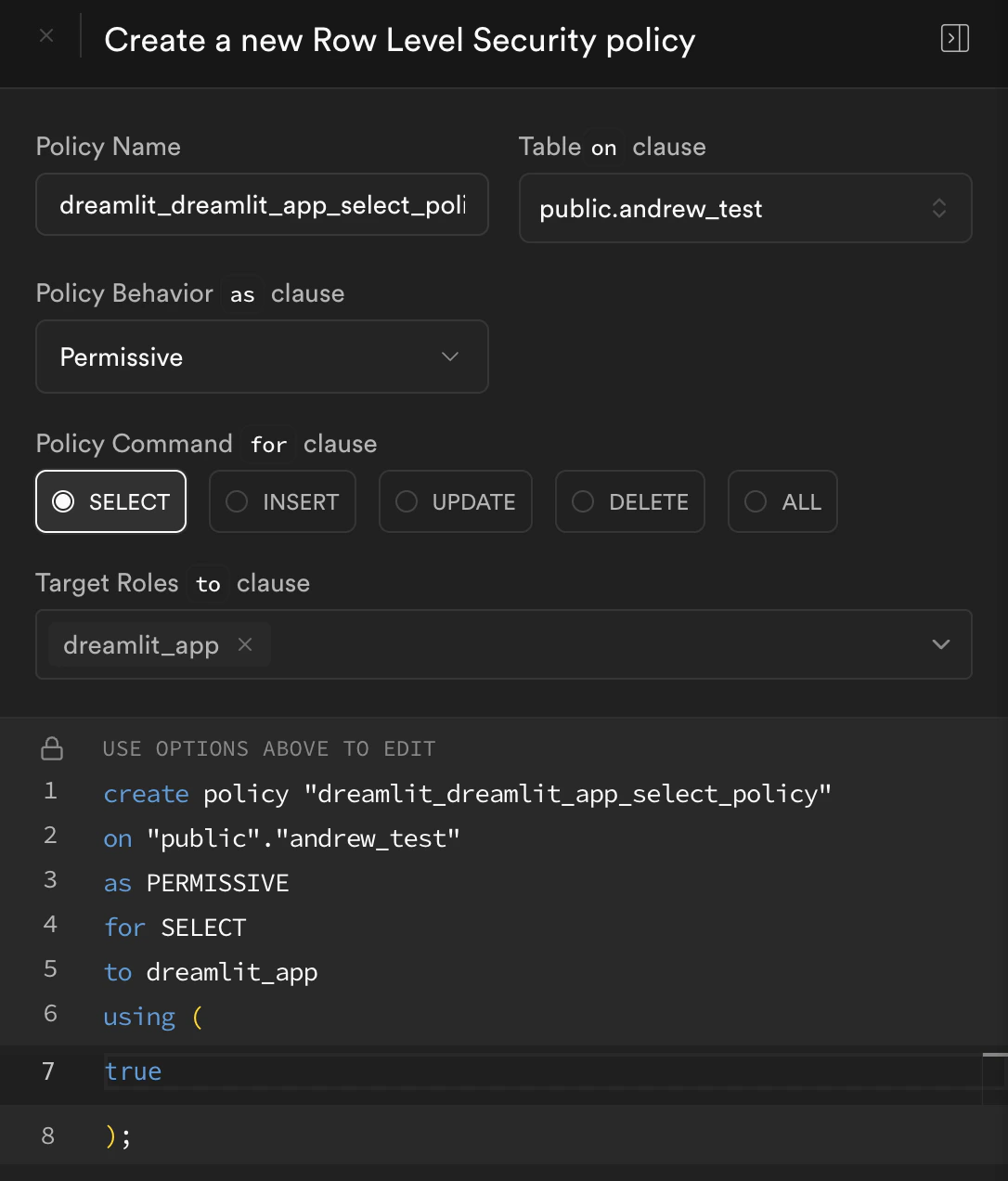
Fill the policy to match Dreamlit's setup
Use these values:
Field
Value
Policy name
dreamlit_dreamlit_app_select_policy
Command / action
SELECT
Target role
dreamlit_app
USING expression
true
This mirrors the same policy Dreamlit applies during provisioning. It’s
read-only and doesn’t allow inserts, updates, or deletes.If RLS isn’t enabled yet for that table, turn it on first before saving
the policy.
Add the Dreamlit read-only policy in the Supabase policy editor
4
Save and retry in Dreamlit
Go back to Dreamlit and retry the action that was failing:
Reopen the workflow or table picker
Republish the workflow if needed
Retry the preview or trigger setup
If the connection is paused, go to Settings → Database Connections and
click Resume connection.
Dreamlit adds a permissive SELECT policy for dreamlit_app when it provisions
your Supabase connection, but that only covers tables that exist at that
moment. New tables need the same policy added manually.Supabase encourages RLS, and tables created through the dashboard often start
with RLS enabled by default. How a table is created affects whether RLS is on:
Tables created in the Supabase dashboard usually have RLS enabled by default
Tables created via SQL or migrations need RLS enabled manually
Add explicit RLS policies that give dreamlit_app the access it needs, or ask
your AI to make that change for you.If you keep RLS on Dreamlit’s internal tables, make sure dreamlit_app has
these permissions:
SELECT, INSERT, UPDATE, and DELETE on dreamlit.event_log
SELECT, INSERT, UPDATE, and DELETE on dreamlit.error_log
SELECT, INSERT, UPDATE, and DELETE on dreamlit.version