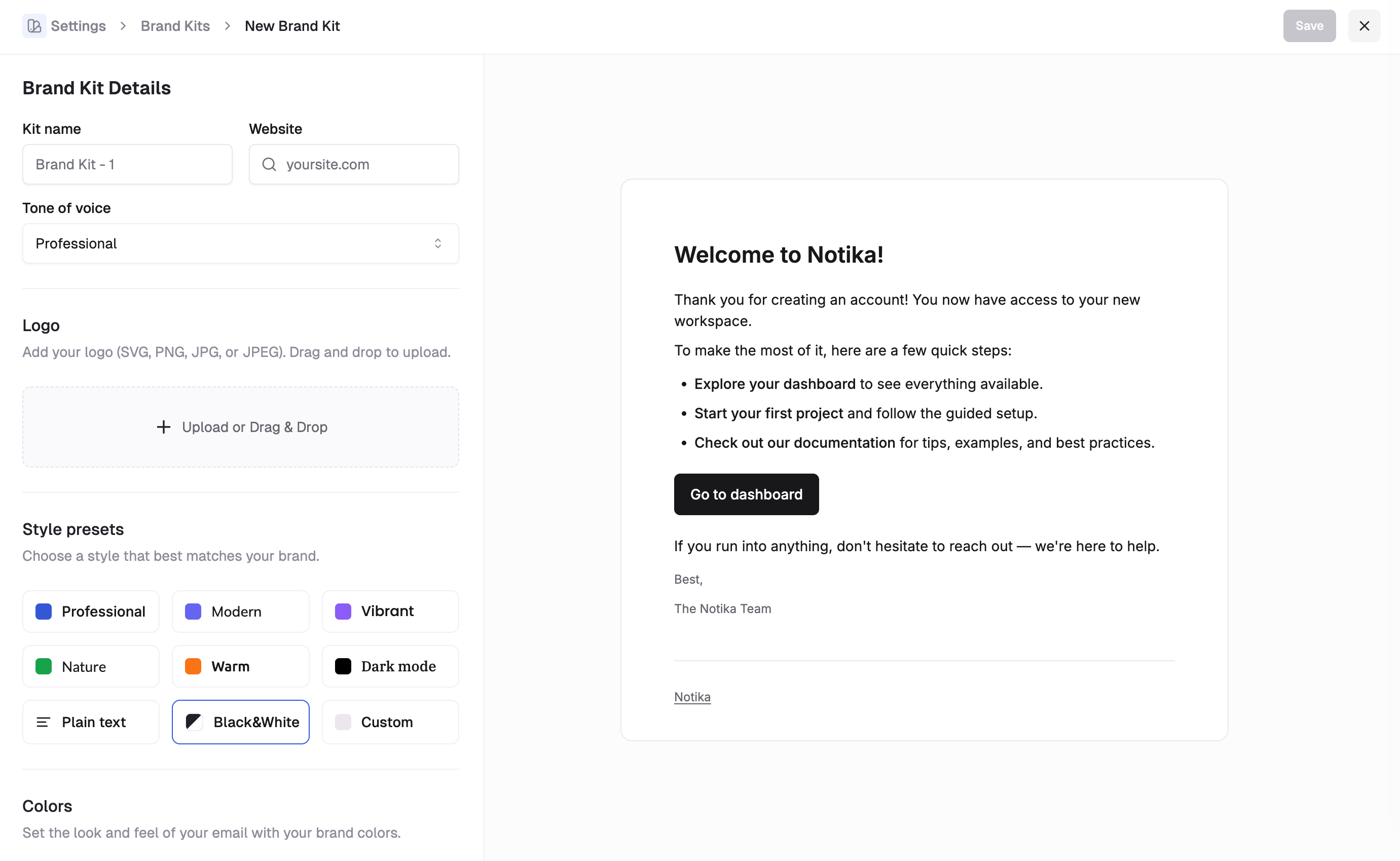
Brand Styles let you save a project’s logo, colors, fonts, and email styling so Dreamlit can generate messages that match your visual identity.
Brand Style editor interface

Setting up a Brand Style

  1. Navigate to SettingsBrand Styles.
  2. Create a new Brand Style or edit the default one.
  3. Customize your settings:
    • Brand details: Set the brand name and logo.
    • Colors: Define the palette Dreamlit should apply to email designs.
    • Typography: Pick heading and body fonts.
    • Preview templates: Review light and dark examples before saving.

Using Brand Styles

When you pick a different email design, Dreamlit can attach a Brand Style to the selected template. The AI uses both the template design and the selected Brand Style to recreate the current email step. You can also choose No brand style when you want the selected template’s default styling to stay intact.