

Brand Kits allow you to define your visual identity—logo, colors, fonts, and tone of voice—so that Dreamlit’s AI can automatically generate on-brand email templates for you.Documentation Index
Fetch the complete documentation index at: https://notikaai.mintlify.app/llms.txt
Use this file to discover all available pages before exploring further.
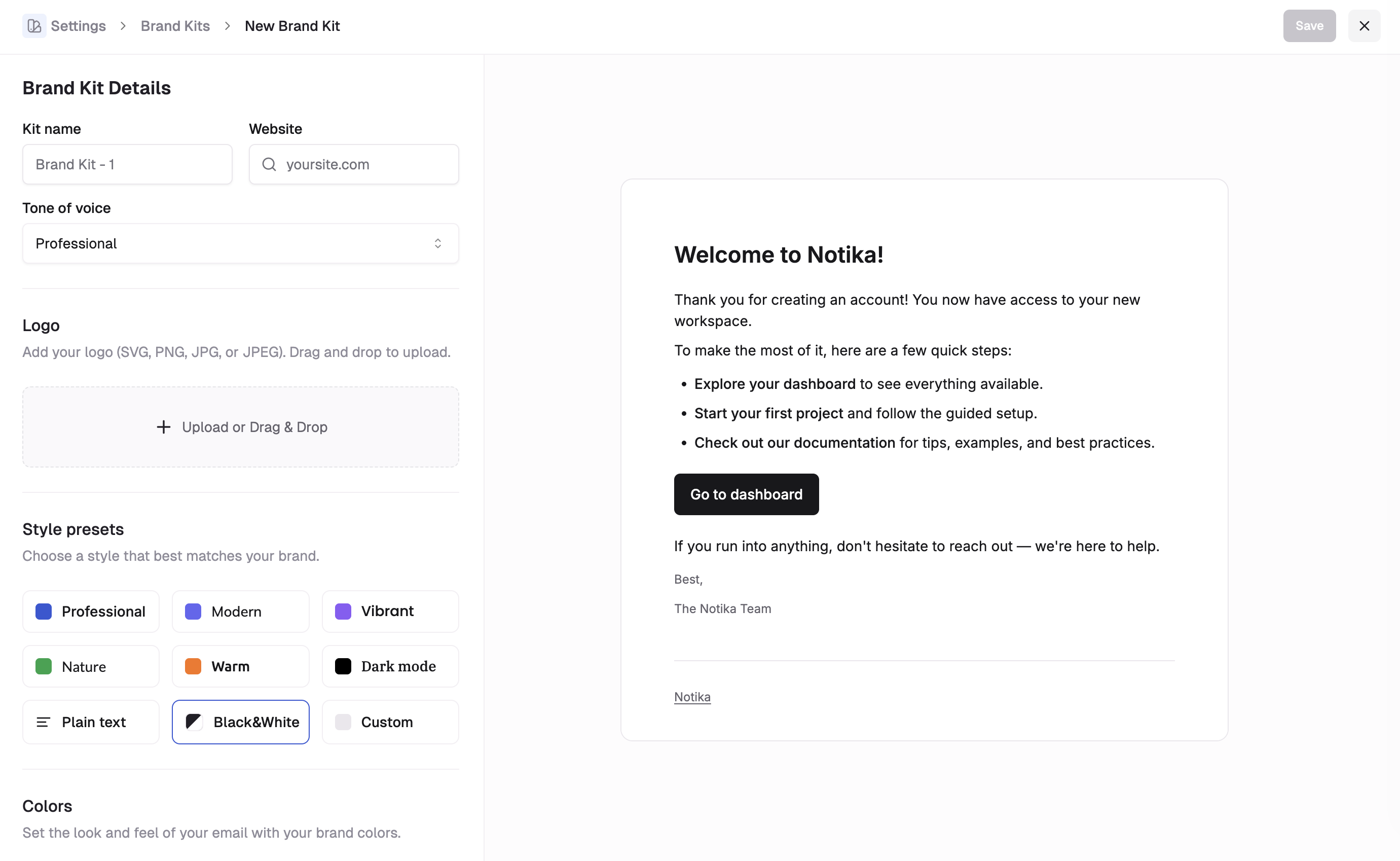
Setting up a Brand Kit
- Navigate to Settings → Brand Kits.
- Click Create new brand kit or edit the default one.
- Customize your settings:
- Basic Details: Set your brand name, website, and preferred tone of voice (e.g., Professional, Friendly, Playful).
- Logo: Upload your logo (SVG, PNG, or JPG). This will be automatically placed in email headers.
- Style Preset: Choose a starting point like “Modern”, “Professional”, or “Vibrant”.
- Colors & Typography: Fine-tune your palette and font choices.