> ## Documentation Index
> Fetch the complete documentation index at: https://notikaai.mintlify.site/llms.txt
> Use this file to discover all available pages before exploring further.
# Wait
> Add a delay within a workflow run before proceeding to the next step.
The **Wait** step lets you add a fixed time period between two steps. This is useful for scheduling follow-up actions, spacing out notifications, or waiting for some process to complete.
For instance, you could add a 3 day wait after a "user row inserted" trigger to send an email three days after a signup.
To add a **Wait** step, click the "+" placeholder node in the builder or the "+" button on any connection between two steps.
Then click "Wait step".
From there, you can specify a duration and unit of time for the run to wait before proceeding to the next step.
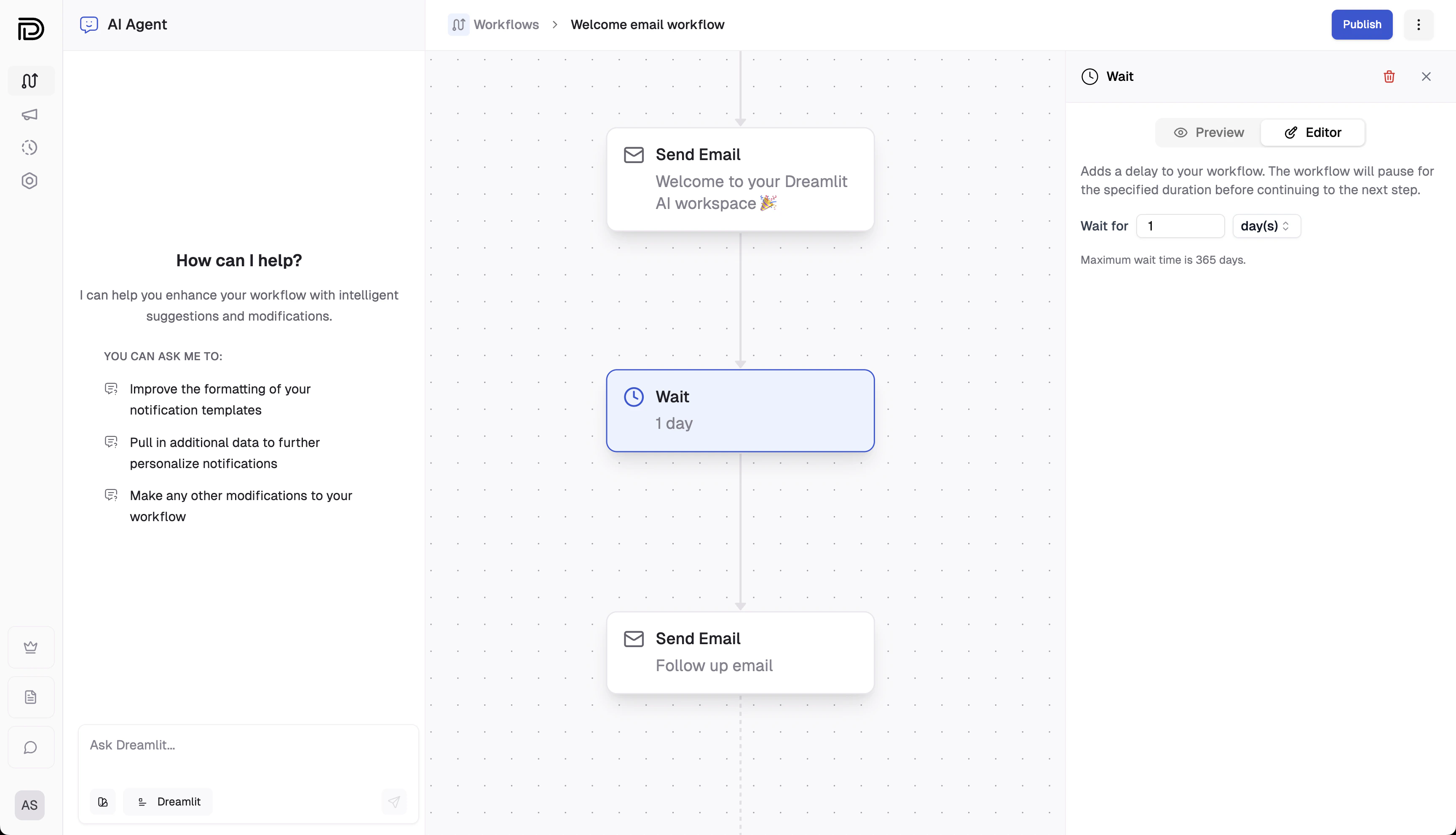 **Note:** The Wait step passes through the same input data to subsequent steps
after the delay. It's designed solely to pause the workflow's execution
without transforming the data.
### Dynamic waits (coming soon)
Soon, you'll be able to add dynamic waits to your workflows: instead of using a fixed delay, you can set the wait
duration based on input data—for example, by running a SQL query to determine the wait time (e.g., "wait until 1
month before the expiry date"). This makes your scheduling even more flexible.
## Explore further
Learn about the real-time scheduling and robust processing architecture
behind Dreamlit.
Discover how publishing your workflow activates your configured
steps—including any delays.
**Note:** The Wait step passes through the same input data to subsequent steps
after the delay. It's designed solely to pause the workflow's execution
without transforming the data.
### Dynamic waits (coming soon)
Soon, you'll be able to add dynamic waits to your workflows: instead of using a fixed delay, you can set the wait
duration based on input data—for example, by running a SQL query to determine the wait time (e.g., "wait until 1
month before the expiry date"). This makes your scheduling even more flexible.
## Explore further
Learn about the real-time scheduling and robust processing architecture
behind Dreamlit.
Discover how publishing your workflow activates your configured
steps—including any delays.