> ## Documentation Index
> Fetch the complete documentation index at: https://notikaai.mintlify.site/llms.txt
> Use this file to discover all available pages before exploring further.
# Supabase Auth trigger
> Start workflows from Supabase Auth API events.
Only relevant if you're on Supabase and have turned on Dreamlit-managed Supabase Auth emails. If you skipped it during onboarding, head to **Settings → Database Connections**, open your Supabase connection, and click **Setup Supabase Auth**.
Turning this on does not implement auth flows in your app. Your app must still call Supabase Auth APIs, configure redirect URLs, and handle web callbacks or native deep links. Dreamlit only handles the email delivery for those API-driven events.
The **Supabase Auth Trigger** runs when Supabase sends an auth event to Dreamlit via the Auth Hook configured during setup. It applies **only if you use Supabase** and have **explicitly opted in for Dreamlit-managed Supabase Auth emails** (this is not enabled by default). It is auto-installed with your Supabase connection and cannot be swapped or removed in the workflow builder.
 ## Breakdown
Auth workflows fire from **Supabase Auth API calls** (e.g., sign up, magic link, password reset), not database changes.
Supabase emits an auth event when your app calls its Auth APIs, such as:
`supabase.auth.signUp`, `signInWithOtp`, `resetPasswordForEmail`, `reauthenticate`, `updateUser({ email })`, and `admin.inviteUserByEmail`. The Auth Hook forwards that event to Dreamlit, which kicks off this workflow.
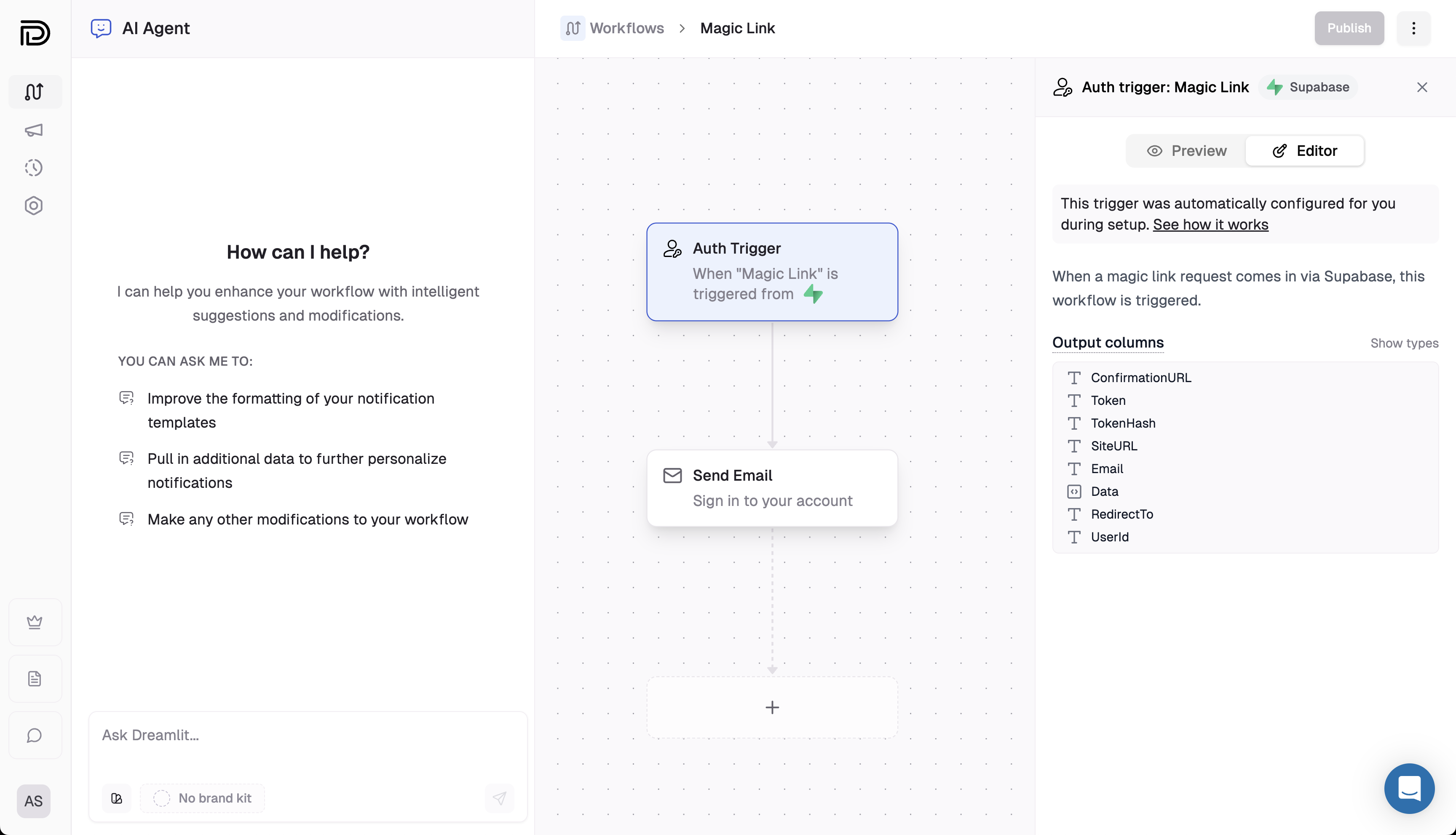
Each run exposes auth-specific fields you can use downstream: `ConfirmationURL`, `Token`, `TokenHash`, `SiteURL`, `Email`, `Data`, `RedirectTo`, and `UserId`. Use `ConfirmationURL` for a clickable auth link, or `Token` when your app asks the user to enter a six-digit code.
Supabase can provide both `Token` and link data in the same event. Do not choose the email UI by checking whether `Token` exists. Choose based on the auth flow your app supports.
This trigger is created during Supabase setup. You cannot change its type, delete it, or replace it from the builder—adjust downstream steps (queries, emails, Slack) instead. If you skipped auth setup during onboarding, go to **Settings → Database Connections**, open your Supabase connection, and click **Setup Supabase Auth** to install the hook.
## Explore further
Learn how the Auth Hook is installed and how the six auth email types map to workflows.
Customize the auth email content that follows this trigger.
## Breakdown
Auth workflows fire from **Supabase Auth API calls** (e.g., sign up, magic link, password reset), not database changes.
Supabase emits an auth event when your app calls its Auth APIs, such as:
`supabase.auth.signUp`, `signInWithOtp`, `resetPasswordForEmail`, `reauthenticate`, `updateUser({ email })`, and `admin.inviteUserByEmail`. The Auth Hook forwards that event to Dreamlit, which kicks off this workflow.
Each run exposes auth-specific fields you can use downstream: `ConfirmationURL`, `Token`, `TokenHash`, `SiteURL`, `Email`, `Data`, `RedirectTo`, and `UserId`. Use `ConfirmationURL` for a clickable auth link, or `Token` when your app asks the user to enter a six-digit code.
Supabase can provide both `Token` and link data in the same event. Do not choose the email UI by checking whether `Token` exists. Choose based on the auth flow your app supports.
This trigger is created during Supabase setup. You cannot change its type, delete it, or replace it from the builder—adjust downstream steps (queries, emails, Slack) instead. If you skipped auth setup during onboarding, go to **Settings → Database Connections**, open your Supabase connection, and click **Setup Supabase Auth** to install the hook.
## Explore further
Learn how the Auth Hook is installed and how the six auth email types map to workflows.
Customize the auth email content that follows this trigger.