> ## Documentation Index
> Fetch the complete documentation index at: https://notikaai.mintlify.site/llms.txt
> Use this file to discover all available pages before exploring further.
# Send Slack
> Send a message to a Slack channel.
The **Send Slack** step allows you to deliver real-time messages directly to a specific Slack channel of your choice. For instance, you can:
* alert the team about a high-value signup
* notify support of urgent issues
* broadcast a daily digest
* setup a #feed channel to track all key activity in your app
To add a **Send Slack** step, click the "+" placeholder node in the builder or the "+" button on any connection between two steps.
Then click **Send Internal Slack**.
Currently, this step is designed for **internal** Slack workspaces. If you
need to send messages to *external* Slack channels (e.g., to your users),
please reach out and let us know—this is on our roadmap!
## Breakdown
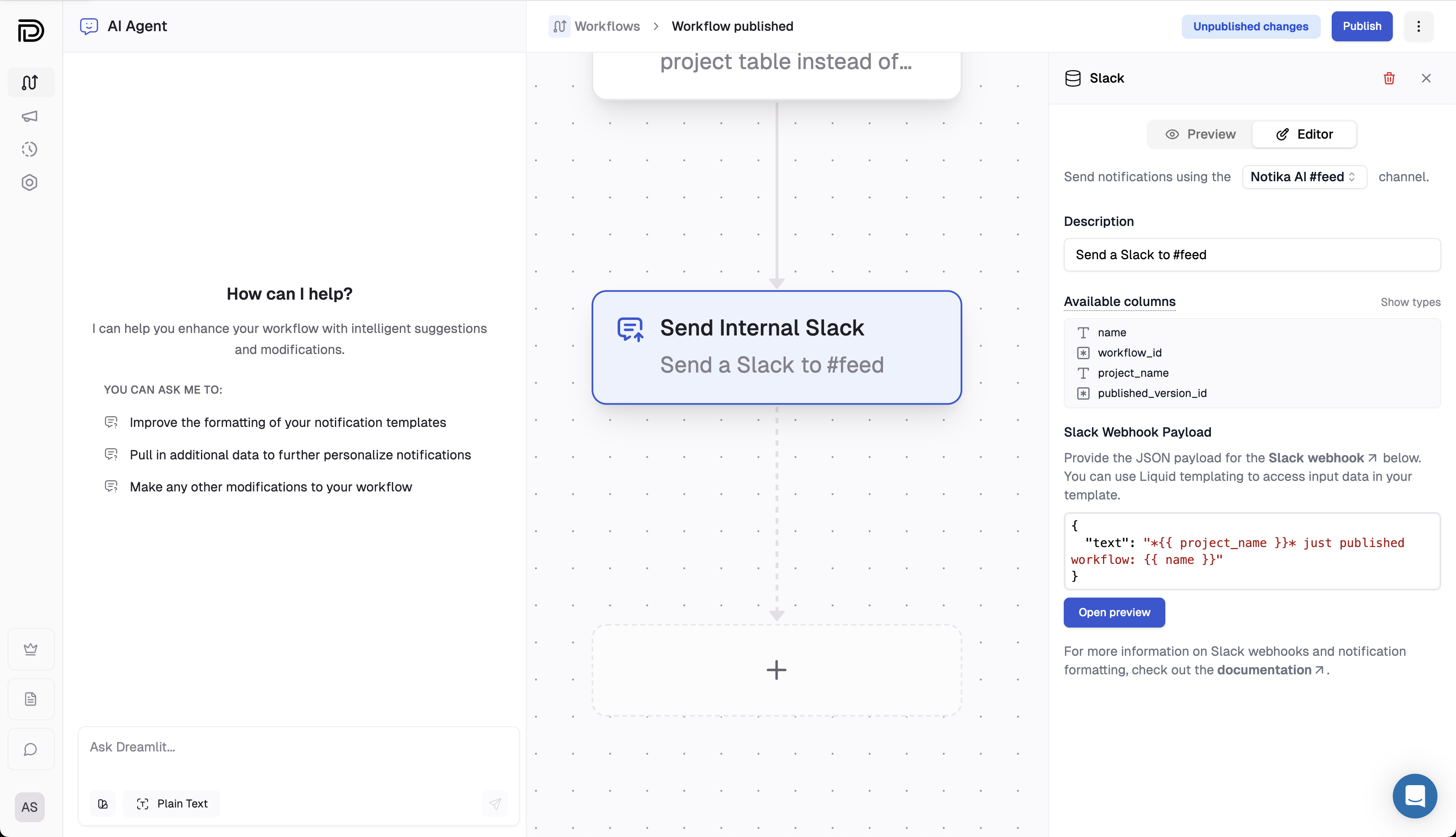 You can select a Slack channel and optionally add a description in the slideover. If you haven't configured a channel yet, you can do so under [Settings](/docs/configuration/slack).
You'll notice there's also a live preview panel, where you can preview a fully rendered message based on the currently configured test data.
This step will send a message to the specified Slack channel for every input in the input data list. For each input, the step will:
Generate the JSON payload for the Slack message by substituting the input
data fields into the template.
Initiate [Slack's Incoming Webhooks
API](https://api.slack.com/messaging/webhooks) with the payload, which sends
the message to the configured Slack channel.
### Expected JSON payload structure
[Slack's Incoming Webhooks API](https://api.slack.com/messaging/webhooks) expects a JSON payload with specific fields. The two primary components are:
* **text**\
A plain text fallback message that is displayed in notifications and in contexts where rich formatting is unavailable.
* **blocks**\
An array of Block Kit components that provide rich, interactive formatting. Each block is an object with a `type` (such as `"section"`, `"divider"`, or `"actions"`) and additional properties based on the block type. For example, a section block might look like this:
```json theme={null}
{
"type": "section",
"text": {
"type": "mrkdwn",
"text": "New order placed by *{{ customer.name }}*."
}
}
```
Slack renders these blocks to display your message with enhanced formatting. You can include both a simple `text` field and/or a detailed `blocks` array to provide a rich notification experience.
Visit [Slack's Block Kit documentation](https://api.slack.com/block-kit) for a deeper dive on how to build rich messages.
### Using input data
The template editor supports [Liquid](https://shopify.github.io/liquid/), which lets you substitute input data fields to create
dynamic messages. You can use the `{{ }}` syntax to insert the input data fields into your message.
Some examples:
Insert variables directly into your message. For example, to notify your team about a new signup:
```liquid theme={null}
{
"text": "New signup: {{ email }}"
}
```
In this template, the placeholder `{{ customer.email }}` is replaced with the actual customer email.
Generate a dynamic list of blocks by looping over an array. For example, to list each item in an order, you might use:
```liquid theme={null}
{
"blocks": [
{% for item in orders %}
{
"type": "section",
"text": {
"type": "mrkdwn",
"text": "• *{{ item.name }}*: ${{ item.price }}"
}
}{% if forloop.last == false %},{% endif %}
{% endfor %}
]
}
```
This loop creates a section block for each item, allowing you to generate a dynamic number of blocks.
Customize your message based on conditions. For example, to display a special alert for premium customers:
```liquid theme={null}
{
"text": "{% if isPremium %}Premium customer {{ name }} has placed an order!{% else %}Order received from {{ name }}.{% endif %}"
}
```
This template uses a conditional statement to vary the message based on the customer's status.
## Explore further
Learn how to create dynamic messages with Liquid templating.
Explore Slack Block Kit to build rich, interactive messages.
Learn how to a configure Slack channel.
You can select a Slack channel and optionally add a description in the slideover. If you haven't configured a channel yet, you can do so under [Settings](/docs/configuration/slack).
You'll notice there's also a live preview panel, where you can preview a fully rendered message based on the currently configured test data.
This step will send a message to the specified Slack channel for every input in the input data list. For each input, the step will:
Generate the JSON payload for the Slack message by substituting the input
data fields into the template.
Initiate [Slack's Incoming Webhooks
API](https://api.slack.com/messaging/webhooks) with the payload, which sends
the message to the configured Slack channel.
### Expected JSON payload structure
[Slack's Incoming Webhooks API](https://api.slack.com/messaging/webhooks) expects a JSON payload with specific fields. The two primary components are:
* **text**\
A plain text fallback message that is displayed in notifications and in contexts where rich formatting is unavailable.
* **blocks**\
An array of Block Kit components that provide rich, interactive formatting. Each block is an object with a `type` (such as `"section"`, `"divider"`, or `"actions"`) and additional properties based on the block type. For example, a section block might look like this:
```json theme={null}
{
"type": "section",
"text": {
"type": "mrkdwn",
"text": "New order placed by *{{ customer.name }}*."
}
}
```
Slack renders these blocks to display your message with enhanced formatting. You can include both a simple `text` field and/or a detailed `blocks` array to provide a rich notification experience.
Visit [Slack's Block Kit documentation](https://api.slack.com/block-kit) for a deeper dive on how to build rich messages.
### Using input data
The template editor supports [Liquid](https://shopify.github.io/liquid/), which lets you substitute input data fields to create
dynamic messages. You can use the `{{ }}` syntax to insert the input data fields into your message.
Some examples:
Insert variables directly into your message. For example, to notify your team about a new signup:
```liquid theme={null}
{
"text": "New signup: {{ email }}"
}
```
In this template, the placeholder `{{ customer.email }}` is replaced with the actual customer email.
Generate a dynamic list of blocks by looping over an array. For example, to list each item in an order, you might use:
```liquid theme={null}
{
"blocks": [
{% for item in orders %}
{
"type": "section",
"text": {
"type": "mrkdwn",
"text": "• *{{ item.name }}*: ${{ item.price }}"
}
}{% if forloop.last == false %},{% endif %}
{% endfor %}
]
}
```
This loop creates a section block for each item, allowing you to generate a dynamic number of blocks.
Customize your message based on conditions. For example, to display a special alert for premium customers:
```liquid theme={null}
{
"text": "{% if isPremium %}Premium customer {{ name }} has placed an order!{% else %}Order received from {{ name }}.{% endif %}"
}
```
This template uses a conditional statement to vary the message based on the customer's status.
## Explore further
Learn how to create dynamic messages with Liquid templating.
Explore Slack Block Kit to build rich, interactive messages.
Learn how to a configure Slack channel.