> ## Documentation Index
> Fetch the complete documentation index at: https://notikaai.mintlify.site/llms.txt
> Use this file to discover all available pages before exploring further.
# Send email
> Deliver a message to an email address.
The **Send Email** step lets you incorporate an email delivery step into your workflow. For every item in the incoming input data into this step, Dreamlit will generate an email and send it (for more info on data flow, see [Workflow Basics](/docs/workflow/basics#data-flow)).
You can fully customize and personalize the email content, including using Liquid formatting to reference fields from your input data.
To add a **Send Email** step, click the "+" placeholder node in the builder or the "+" button on any connection between two steps, then select **Send Email**.
If you haven't yet [added and verified your own email domain](/docs/configuration/email/custom-domain), you can use Dreamlit's default sender to get started.
## Allow unsubscribe
Each Send Email step has an **Allow unsubscribe** toggle. Turn it on for any email recipients should be able to opt out of (newsletters, product updates, promotions, digests, reminders, etc.). Leave it off for messages recipients need to receive regardless (account confirmations, billing receipts, security alerts, auth codes).
When you turn on **Allow unsubscribe**, you also pick a **topic** such as `Product updates` or `Newsletter`. Dreamlit uses that topic to:
* power a managed unsubscribe link
* honor topic-level opt-outs
* honor project-level "unsubscribe from all optional email"
* include email-client unsubscribe headers automatically
When you turn on **Allow unsubscribe**, add Dreamlit's managed unsubscribe variable anywhere in the email body or footer:
```
{{ dreamlit_unsubscribe_url }}
```
For the full model behind topics, unsubscribe-all, and hosted unsubscribe pages, see [Managed unsubscribe](/docs/configuration/email/managing-unsubscribed-contacts).
## Breakdown
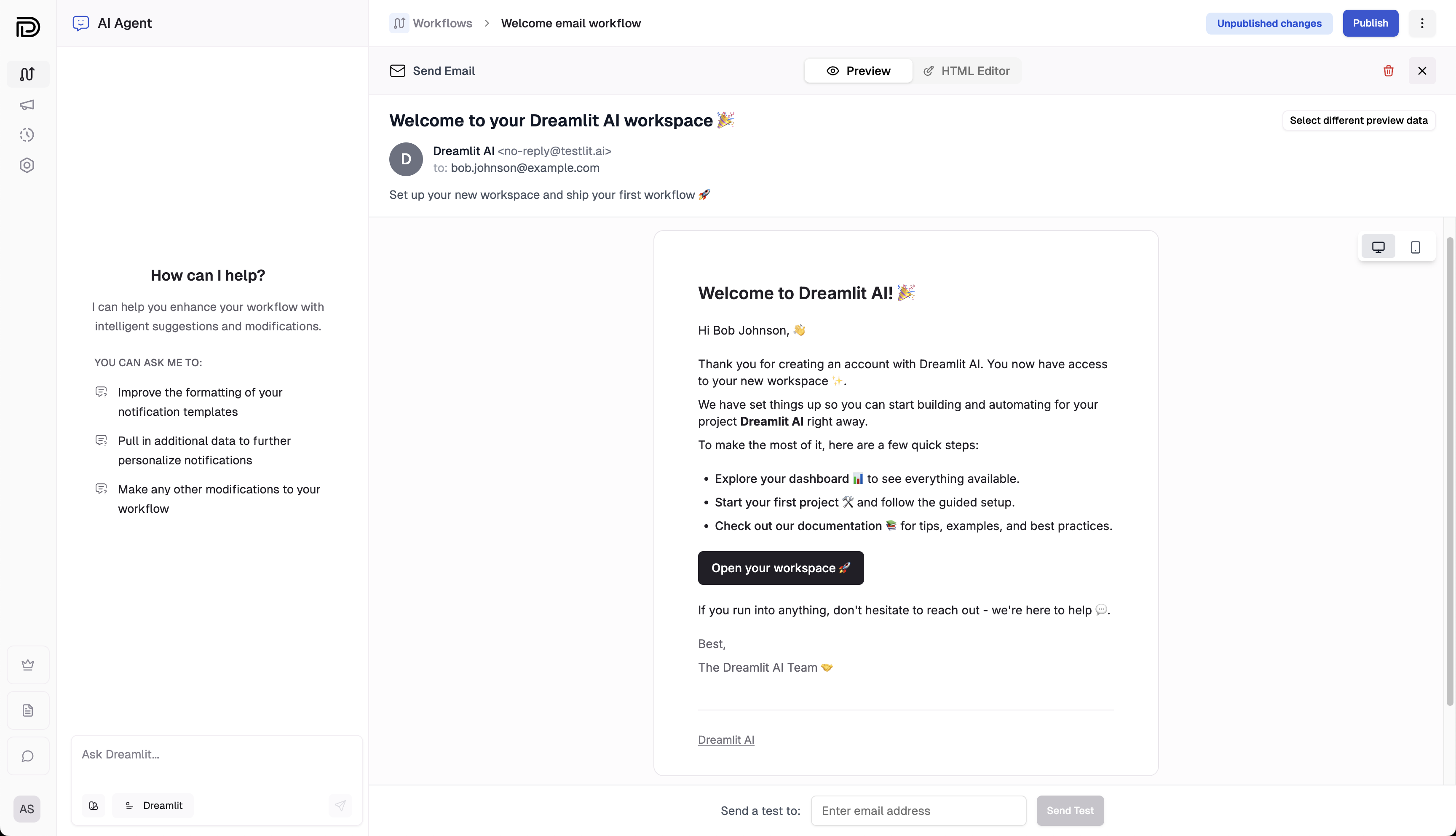 You can use the AI to generate the content for the email.
Specify the email address from which you'd like to send the email. If you haven't configured a domain, no worries—you can use Dreamlit's default sender to get started.
You can either specify one of your team member's email addresses, or you can have the recipient dynamically set using a Liquid variable.
For example, if you have a `user_email` field in your input data, you can set the recipient to `{{ user_email }}`.
Turn on **Allow unsubscribe** for subscription-style email recipients can opt out of, and leave it off for operational messages they need to receive.
If you turn it on, select an existing topic or create one inline. Broadcast emails typically have **Allow unsubscribe** turned on.
* **Reply-To** (optional): The email address to which recipients can direct replies to.
* **Subject**: The subject line of the email.
* **Preview Text** (optional): A short summary that appears below or beside the subject in many email clients.
* **Body**: The full email template. If you have a [Brand Style](/docs/configuration/email/brand-styles) configured, the AI can apply your logo, colors, and fonts when creating or changing the email design.
In all of these fields, you can use Liquid to reference fields from your input data. For example:
```
Hi {{ first_name }}, thanks for signing up!
```
Steps with **Allow unsubscribe** turned on also support a built-in variable:
```
{{ dreamlit_unsubscribe_url }}
```
Use it anywhere in the body to place an explicit unsubscribe link. Dreamlit validates it, but it does not auto-insert a footer for you.
The "Input" section shows you the fields, along with their types, available to you in the input data.
## Test and preview
Click the **Preview** tab to see how your email will be fully rendered (i.e. with test input data values substituted in). You can send yourself a test email to confirm it in your email client as well.
Remember that your test input data could generate multiple emails if there are multiple rows. If you'd like to select a different row to preview an email for, simply click the "Test" tab under the Input section on the left. You'll see a list of emails that the trigger input would generate and you can select a different row to preview there.
If you'd like to select a different test trigger input, you can do so by opening the [Test](/docs/workflow/test-interface) panel in the workflow builder.
## Brand consistency
Maintaining a consistent visual identity across all your emails is often an afterthought. With Dreamlit's **Brand Styles**, you define your styles once—logo, colors, fonts, and visual style—and our AI can apply them when generating or changing email designs.
* **Centralized styling**: Update your brand color in one place, and it applies to future generations.
* **Visual consistency**: Ensure every notification uses the same saved logo, colors, fonts, and layout style.
* **Design best practices**: Our templates are pre-optimized for dark mode and mobile responsiveness, so you don't have to fight with email HTML tables.
## Explore further
Learn how topics, unsubscribe links, and unsubscribe-all work.
Learn how to set up your own email domain to send emails to external
recipients.
Configure your logo, colors, fonts, and visual style for consistent on-brand emails.
You can use the AI to generate the content for the email.
Specify the email address from which you'd like to send the email. If you haven't configured a domain, no worries—you can use Dreamlit's default sender to get started.
You can either specify one of your team member's email addresses, or you can have the recipient dynamically set using a Liquid variable.
For example, if you have a `user_email` field in your input data, you can set the recipient to `{{ user_email }}`.
Turn on **Allow unsubscribe** for subscription-style email recipients can opt out of, and leave it off for operational messages they need to receive.
If you turn it on, select an existing topic or create one inline. Broadcast emails typically have **Allow unsubscribe** turned on.
* **Reply-To** (optional): The email address to which recipients can direct replies to.
* **Subject**: The subject line of the email.
* **Preview Text** (optional): A short summary that appears below or beside the subject in many email clients.
* **Body**: The full email template. If you have a [Brand Style](/docs/configuration/email/brand-styles) configured, the AI can apply your logo, colors, and fonts when creating or changing the email design.
In all of these fields, you can use Liquid to reference fields from your input data. For example:
```
Hi {{ first_name }}, thanks for signing up!
```
Steps with **Allow unsubscribe** turned on also support a built-in variable:
```
{{ dreamlit_unsubscribe_url }}
```
Use it anywhere in the body to place an explicit unsubscribe link. Dreamlit validates it, but it does not auto-insert a footer for you.
The "Input" section shows you the fields, along with their types, available to you in the input data.
## Test and preview
Click the **Preview** tab to see how your email will be fully rendered (i.e. with test input data values substituted in). You can send yourself a test email to confirm it in your email client as well.
Remember that your test input data could generate multiple emails if there are multiple rows. If you'd like to select a different row to preview an email for, simply click the "Test" tab under the Input section on the left. You'll see a list of emails that the trigger input would generate and you can select a different row to preview there.
If you'd like to select a different test trigger input, you can do so by opening the [Test](/docs/workflow/test-interface) panel in the workflow builder.
## Brand consistency
Maintaining a consistent visual identity across all your emails is often an afterthought. With Dreamlit's **Brand Styles**, you define your styles once—logo, colors, fonts, and visual style—and our AI can apply them when generating or changing email designs.
* **Centralized styling**: Update your brand color in one place, and it applies to future generations.
* **Visual consistency**: Ensure every notification uses the same saved logo, colors, fonts, and layout style.
* **Design best practices**: Our templates are pre-optimized for dark mode and mobile responsiveness, so you don't have to fight with email HTML tables.
## Explore further
Learn how topics, unsubscribe links, and unsubscribe-all work.
Learn how to set up your own email domain to send emails to external
recipients.
Configure your logo, colors, fonts, and visual style for consistent on-brand emails.