> ## Documentation Index
> Fetch the complete documentation index at: https://notikaai.mintlify.site/llms.txt
> Use this file to discover all available pages before exploring further.
# Repeating trigger
> Kick off a workflow on a recurring schedule.
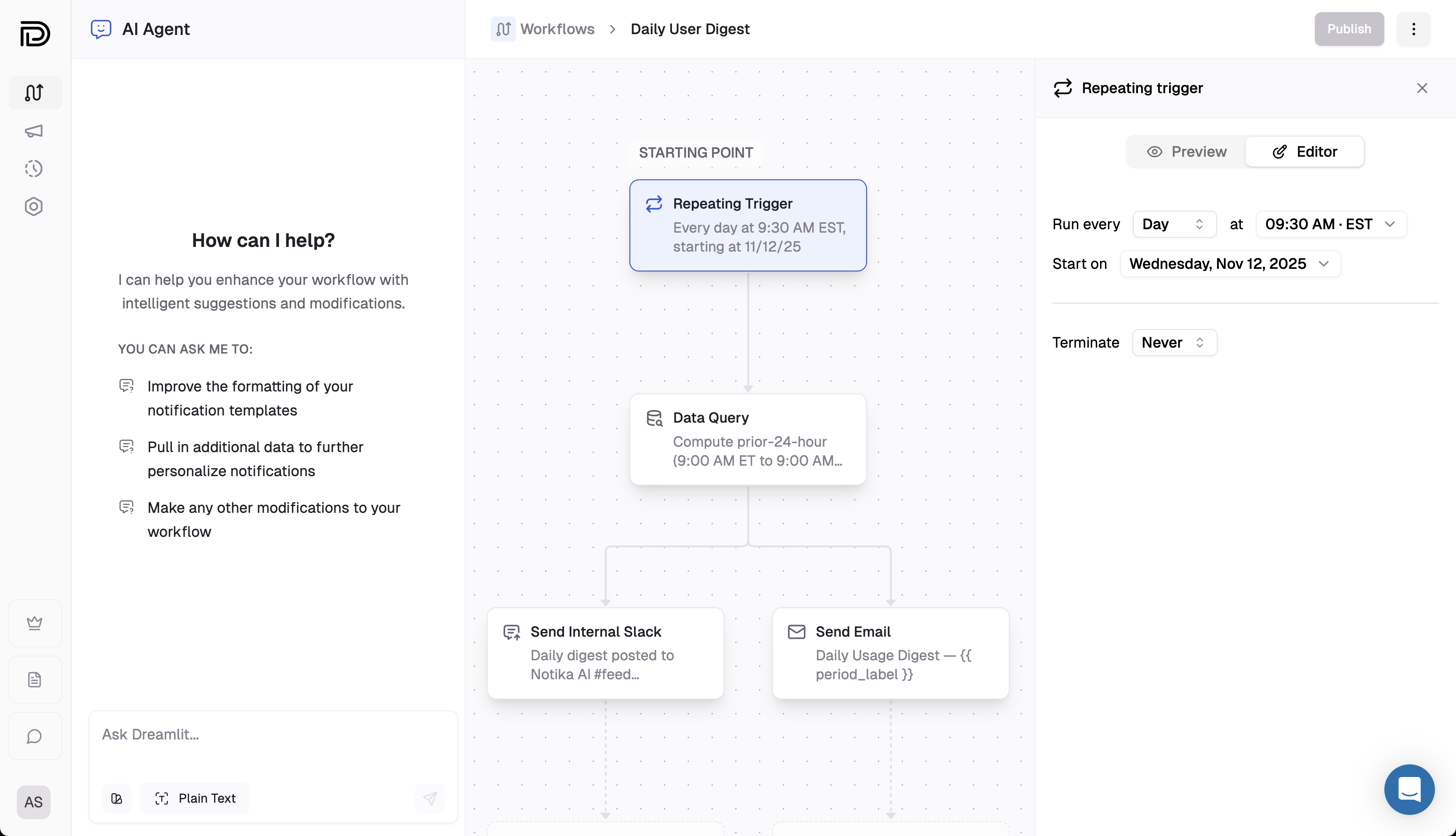
Use the **Repeating Trigger** to run workflows on a fixed cadence in your team's timezone—perfect for daily digests, weekly summaries, or month-end reports.
To add this trigger, ask the **AI Agent** for the workflow you want. It will create the trigger for you. For any changes you'd like to make, you can either ask the AI or adjust the schedule details manually in the editor.
 ## Breakdown
Run on a **daily**, **weekly**, or **monthly** schedule. For weekly runs, pick the weekdays to include. For monthly runs, choose a specific calendar day or use an "nth from the end" rule for flexible month-end timing.
Set the start date for the first run plus a local send time (hour, minute, AM/PM) and an IANA timezone (e.g., America/New\_York). Dreamlit schedules future runs in that timezone automatically.
Keep the workflow running indefinitely or provide a cutoff date/time to stop scheduling new runs.
The repeating trigger does not output any row data. Add a [Data Query](/docs/steps/query) step right after it to load recipients or other context before sending notifications.
## Explore further
Learn how triggers, steps, and data flow connect in Dreamlit.
Fetch the audience or context you need right after the trigger.
## Breakdown
Run on a **daily**, **weekly**, or **monthly** schedule. For weekly runs, pick the weekdays to include. For monthly runs, choose a specific calendar day or use an "nth from the end" rule for flexible month-end timing.
Set the start date for the first run plus a local send time (hour, minute, AM/PM) and an IANA timezone (e.g., America/New\_York). Dreamlit schedules future runs in that timezone automatically.
Keep the workflow running indefinitely or provide a cutoff date/time to stop scheduling new runs.
The repeating trigger does not output any row data. Add a [Data Query](/docs/steps/query) step right after it to load recipients or other context before sending notifications.
## Explore further
Learn how triggers, steps, and data flow connect in Dreamlit.
Fetch the audience or context you need right after the trigger.