> ## Documentation Index
> Fetch the complete documentation index at: https://notikaai.mintlify.site/llms.txt
> Use this file to discover all available pages before exploring further.
# Query
> Run a SQL query to transform data.
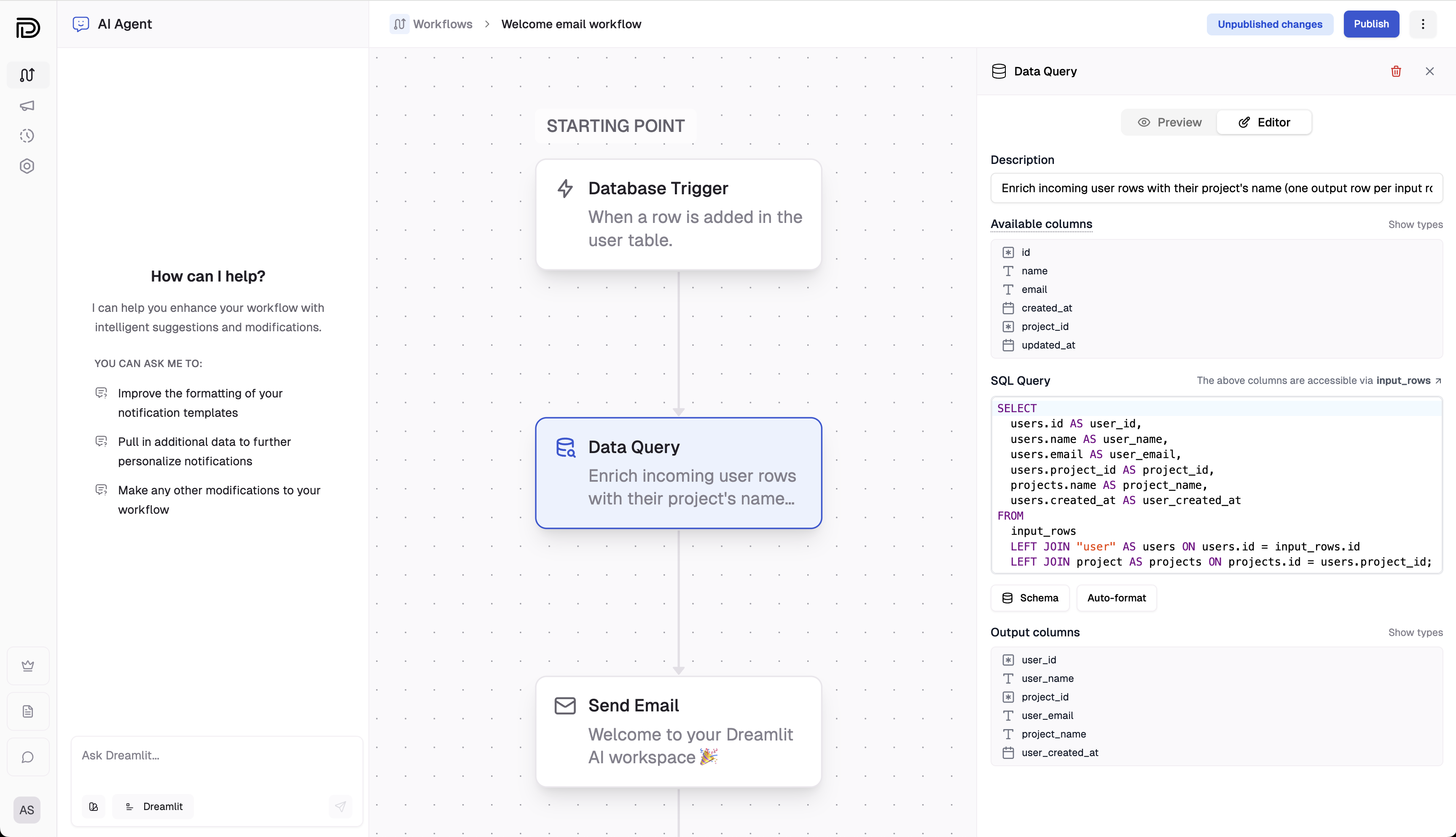
The **Data Query** step lets you execute a SQL query to fetch, filter, or transform your input data. Use this step to:
* **Enrich data:** Join your input data with additional tables to add extra context.
* **Refetch information:** Retrieve the most up-to-date data after a **Wait step**.
* **Filter rows:** Apply custom conditions to include or exclude specific records.
* **Fan-out:** Expand a single trigger event into multiple notifications by transforming the input row into multiple rows.
To add a **Data Query** step, click the "+" placeholder node in the builder or the "+" button on any connection between two steps, then select **Data Query**.
 ## Breakdown
Choose the database connection through which the query will be executed. This connection must be configured in your settings.
Enter a SQL statement that processes the data from the parent step. You can access the input data via a temporary table called `input_rows` in addition to the tables from the database connection you selected.
The query editor supports SQL syntax highlighting, auto-completion, and a built-in formatter.
Suppose the parent step returns user details with columns like `email` and `organization_id`, and you want to bring in
the user's organization name for a notification template. You can write a query to join these rows with an organization table to
enrich the data:
```sql theme={null}
SELECT input_row.*,
org.organization_name
FROM input_rows AS input_row
JOIN organization AS org
ON input_row.organization_id = org.id;
```
In this query:
* **input\_rows:** Contains all data passed from the previous step.
* **organization:** The table in your database that contains the organization name.
Provide a brief description to easily identify this step within your workflow.
Use the Test Panel to preview outputs and validate your query. This ensures that the data passed on to subsequent steps meets your requirements.
## Explore further
Discover how our real-time engine executes your queries and manages data
transformations.
Learn how publishing your workflow activates the Data Query step and
finalizes its configuration.
## Breakdown
Choose the database connection through which the query will be executed. This connection must be configured in your settings.
Enter a SQL statement that processes the data from the parent step. You can access the input data via a temporary table called `input_rows` in addition to the tables from the database connection you selected.
The query editor supports SQL syntax highlighting, auto-completion, and a built-in formatter.
Suppose the parent step returns user details with columns like `email` and `organization_id`, and you want to bring in
the user's organization name for a notification template. You can write a query to join these rows with an organization table to
enrich the data:
```sql theme={null}
SELECT input_row.*,
org.organization_name
FROM input_rows AS input_row
JOIN organization AS org
ON input_row.organization_id = org.id;
```
In this query:
* **input\_rows:** Contains all data passed from the previous step.
* **organization:** The table in your database that contains the organization name.
Provide a brief description to easily identify this step within your workflow.
Use the Test Panel to preview outputs and validate your query. This ensures that the data passed on to subsequent steps meets your requirements.
## Explore further
Discover how our real-time engine executes your queries and manages data
transformations.
Learn how publishing your workflow activates the Data Query step and
finalizes its configuration.