> ## Documentation Index
> Fetch the complete documentation index at: https://notikaai.mintlify.site/llms.txt
> Use this file to discover all available pages before exploring further.
# Database trigger
> Kick off a workflow when a row is added or updated in a database table.
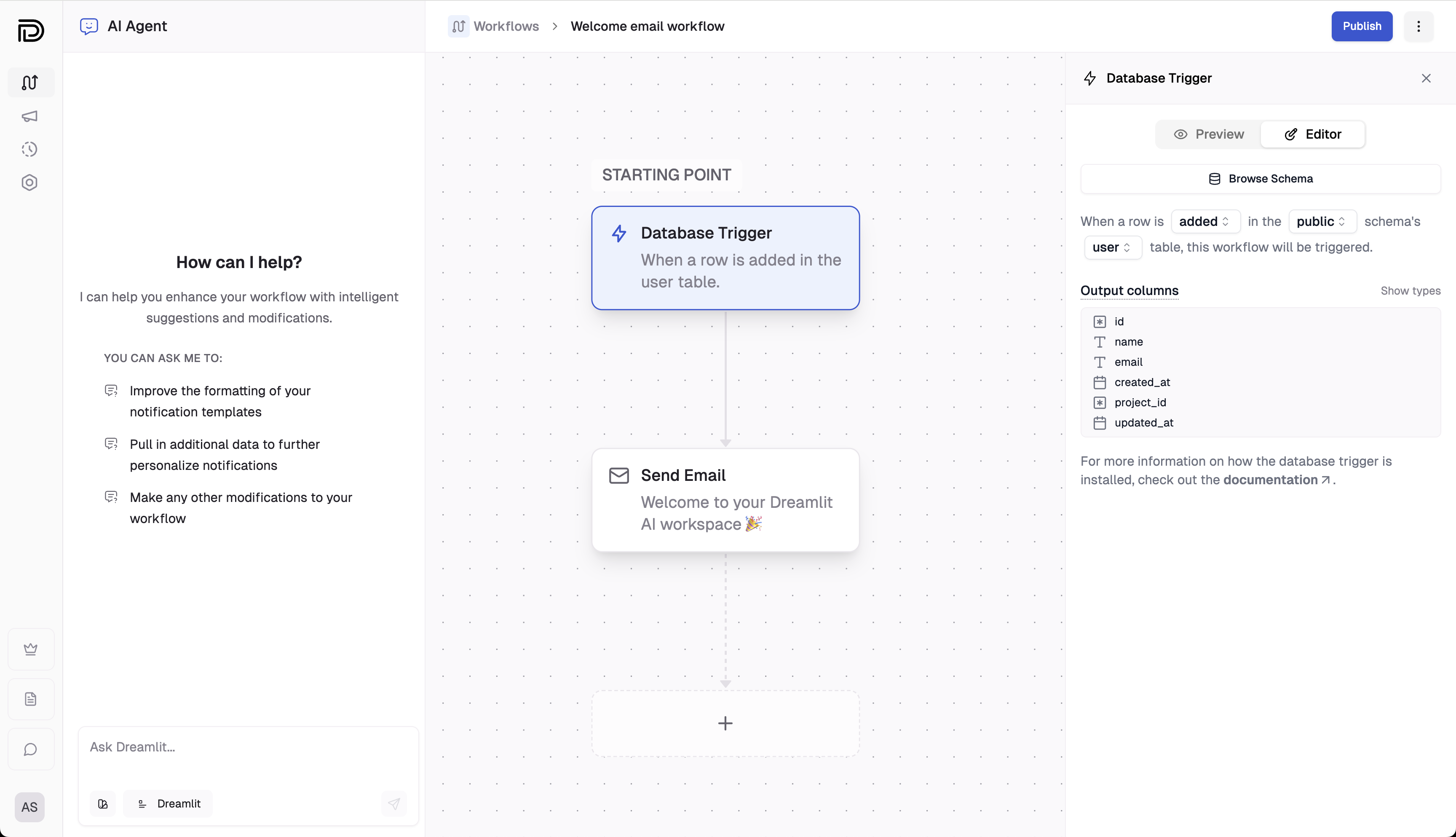
The **Database Trigger** step is your workflow's starting point. Use this step to define which changes in
your database (or external events) will automatically kick off your workflow.
To add this trigger, ask the **AI Agent** for the workflow you want. It will automatically create the trigger for you based on your database schema and your workflow goals. For any changes you'd like to make, you can either ask the AI or adjust the schedule details manually in the editor.
 ## Breakdown
Choose the schema and table to watch. Dreamlit automatically infers the output
shape of the data from the table structure.
Decide whether the trigger should fire on new rows (insertions), updates, or
both. For updates, you can optionally specify the columns to watch.
Note: the trigger only becomes active and applied to your table when you
**publish** your workflow. Until then, no events will be logged.
## Explore further
Get an overview of how Dreamlit's architecture works.
Learn how to configure your database, and how Dreamlit interacts with it.
## Breakdown
Choose the schema and table to watch. Dreamlit automatically infers the output
shape of the data from the table structure.
Decide whether the trigger should fire on new rows (insertions), updates, or
both. For updates, you can optionally specify the columns to watch.
Note: the trigger only becomes active and applied to your table when you
**publish** your workflow. Until then, no events will be logged.
## Explore further
Get an overview of how Dreamlit's architecture works.
Learn how to configure your database, and how Dreamlit interacts with it.