> ## Documentation Index
> Fetch the complete documentation index at: https://notikaai.mintlify.site/llms.txt
> Use this file to discover all available pages before exploring further.
# Figma Make Email: Design-to-App Meets AI-Powered Notifications
> Add email to your Figma Make app in minutes. Describe what you want in plain English, and Dreamlit builds the workflow.
## How do I add email to my Figma Make app?
You designed it in Figma. [Figma Make](https://www.figma.com/make/) turned it into a working app. Now your users need emails that look just as polished.
Dreamlit generates branded email templates with AI, matching your colors, logo, fonts, and visual style through [Brand Styles](/docs/configuration/email/brand-styles). It securely connects to your database and reacts to changes:
* New row in `users` → welcome email
* New row in `orders` → receipt email
* New row in `feedback` → follow-up email
Your Figma Make app handles the product. Dreamlit handles the communication.
## Who is this guide for?
* **Designers who ship** and don't want to become email infrastructure experts
* **Figma Make builders** who want on-brand notifications without context switching
* **Teams** who care about visual consistency between their app and their emails
## Why use Dreamlit instead of building email myself?
Building email sounds simple until you're three hours deep configuring SMTP. Here's what you'd need to handle yourself:
1. **Preview with real data** — How do you see what the email looks like with actual user info before sending?
2. **Delivery tracking** — Who opened it? Who clicked? Who bounced?
3. **Bounce handling** — What happens when an email address doesn't exist?
4. **DNS records** — Are you setting up DKIM and SPF for deliverability?
5. **Retry logic** — What happens when your email provider has an outage?
6. **Scheduled sends** — What about drip sequences or digests?
7. **Unified dashboard** — How do you see all your workflows performing in one place?
8. **Copy iteration** — How do you tweak email wording without redeploying?
Dreamlit handles all of this. You describe what you want. We handle the plumbing.
## What do I need before starting?
* A Figma Make app connected to **Supabase** or **Postgres** (Neon, Railway, Aurora, etc.)
* 5 minutes
**Not sure which database to use?** We recommend Supabase. It connects to Dreamlit in two clicks via OAuth, and you get auth, realtime subscriptions, and a generous free tier.
***
## How do I connect Dreamlit to my database?
Connecting Supabase is two clicks:
Go to [app.dreamlit.ai](https://app.dreamlit.ai) and sign up.
Click **Connect Supabase** and authorize the connection.
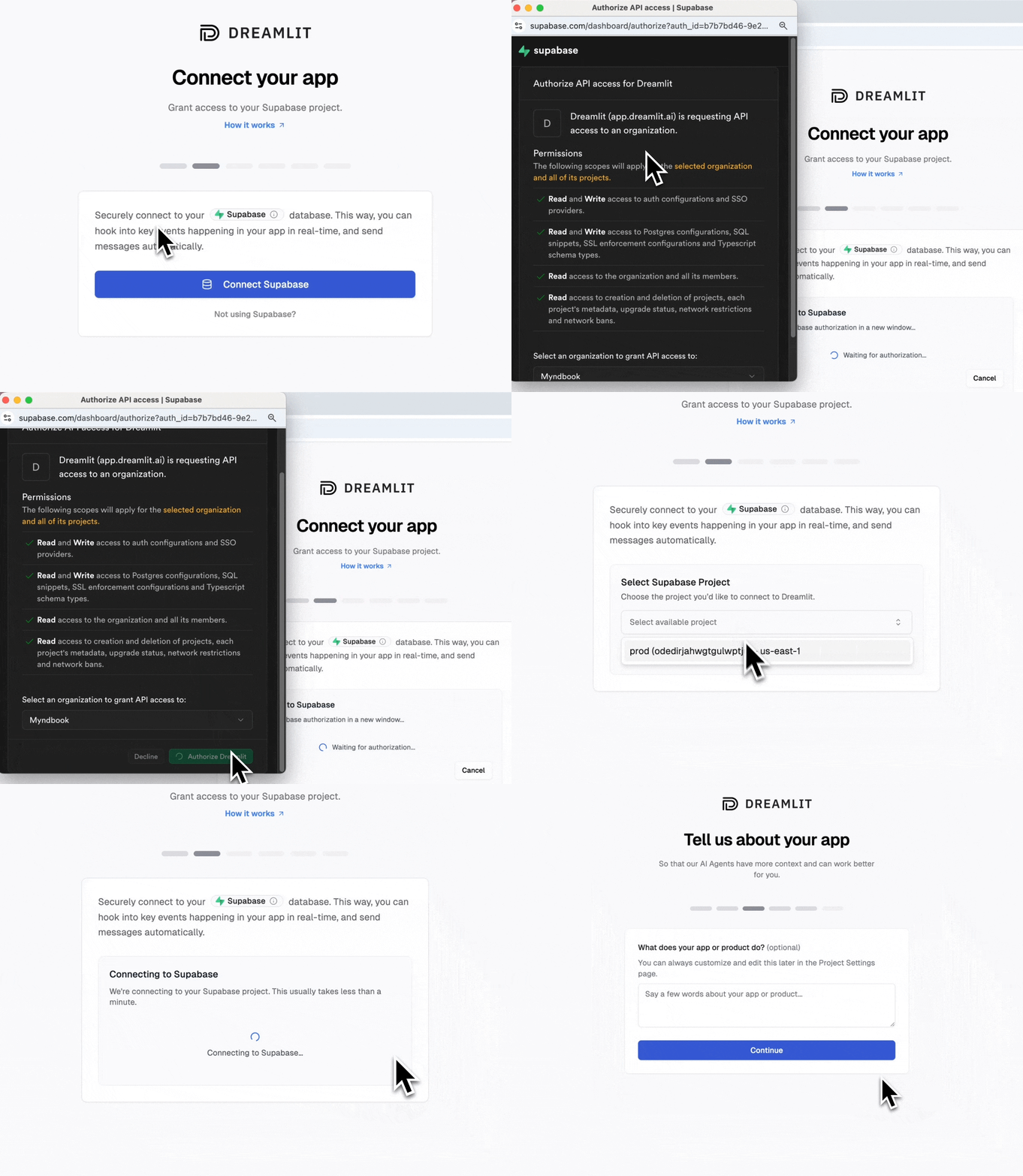 **That's it. 2 clicks and you're connected.** Dreamlit can now react to changes in your Supabase database and trigger workflows.
**Need auth emails?** (password reset, magic links, email verification) Check out our [Supabase Auth Emails guide](/docs/guides/supabase-auth-emails) for one-click setup.
If your Figma Make app uses a different Postgres provider:
Go to [app.dreamlit.ai](https://app.dreamlit.ai) and sign up.
Copy your Postgres connection string from your provider dashboard.
Click **Connect Postgres** and paste your connection string. Follow the guided setup to grant Dreamlit the minimal permissions it needs.
For detailed setup instructions, see [commands to set up your database user](/docs/configuration/data-sources/postgres#commands-to-run-to-setup-your-dreamlit_app-database-user).
***
## How do I create my first email workflow?
Here's an example: setting up a welcome email that sends when someone signs up.
### Step 1: Create the workflow in Dreamlit
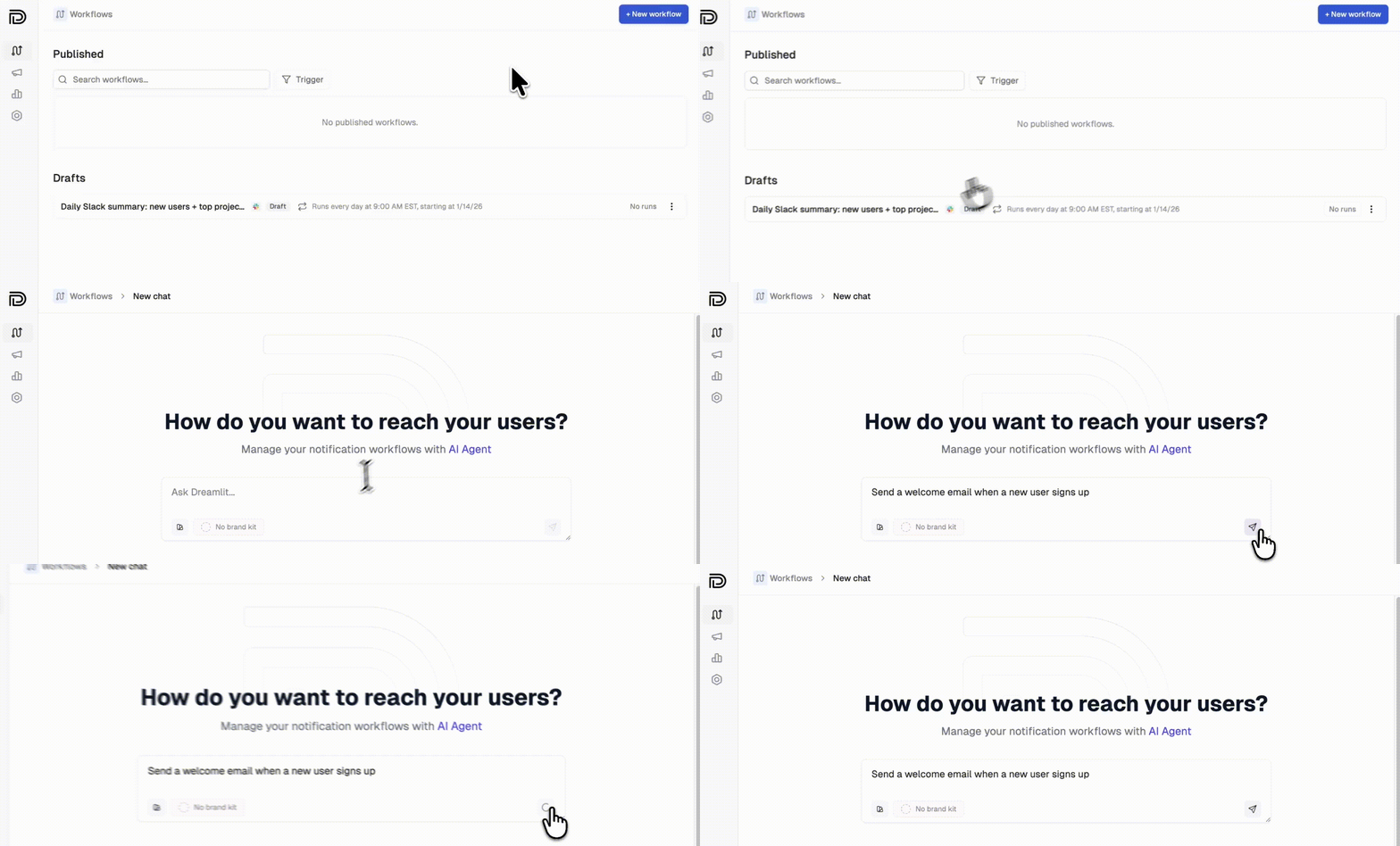
Click **Create Workflow** and describe what you want:
> "Send a welcome email when a new user signs up"
The AI generates everything: the database trigger, email template, and copy.
**That's it. 2 clicks and you're connected.** Dreamlit can now react to changes in your Supabase database and trigger workflows.
**Need auth emails?** (password reset, magic links, email verification) Check out our [Supabase Auth Emails guide](/docs/guides/supabase-auth-emails) for one-click setup.
If your Figma Make app uses a different Postgres provider:
Go to [app.dreamlit.ai](https://app.dreamlit.ai) and sign up.
Copy your Postgres connection string from your provider dashboard.
Click **Connect Postgres** and paste your connection string. Follow the guided setup to grant Dreamlit the minimal permissions it needs.
For detailed setup instructions, see [commands to set up your database user](/docs/configuration/data-sources/postgres#commands-to-run-to-setup-your-dreamlit_app-database-user).
***
## How do I create my first email workflow?
Here's an example: setting up a welcome email that sends when someone signs up.
### Step 1: Create the workflow in Dreamlit
Click **Create Workflow** and describe what you want:
> "Send a welcome email when a new user signs up"
The AI generates everything: the database trigger, email template, and copy.
 ### Step 2: Verify your Figma Make app writes the data
Here's the key insight: **Dreamlit securely connects to your database and reacts to changes, not your code.** When a new row appears in your `users` table, Dreamlit sends the email automatically.
If you're using Supabase Auth, users are automatically added to the `auth.users` table when they sign up. No extra table needed.
If your Figma Make app already creates user records on signup, you're done. No changes needed.
**Common table patterns that work well:**
| Table | Fields | Triggers |
| ------------- | ----------------------------------------- | ------------------------------------ |
| `users` | `email`, `name`, `created_at` | Welcome emails, onboarding sequences |
| `orders` | `user_id`, `total`, `items`, `created_at` | Order confirmations, receipts |
| `feedback` | `user_id`, `message`, `created_at` | Thank you emails, internal alerts |
| `invitations` | `email`, `invited_by`, `created_at` | Invite emails |
### Step 3: Preview and publish
Preview your email with real data from your database, then click **Publish**.
***
## How do email templates work with my Figma Make design?
Since Figma Make generates your app's UI, you might be thinking about visual consistency. Here's how Dreamlit fits in.
### Email templates are separate from your app
Dreamlit generates email templates independently of your Figma Make app. This is intentional: email design has different constraints than web UI (client compatibility, dark mode, mobile rendering).
**To match your brand:**
1. Set up a [Brand Style](/docs/configuration/email/brand-styles) in Dreamlit with your colors, logo, and fonts
2. When creating workflows, mention your style: "Send a welcome email with a minimal, modern design"
3. Edit the generated template directly in Dreamlit's visual editor
### Your app doesn't need to know about email
This is the core benefit. Your Figma Make app writes data to the database. That's it. Dreamlit reacts to those writes and handles notifications separately.
No API calls from your app. No email provider SDKs. No secrets to manage.
***
## What other workflows can I build?
Any workflow that triggers on a database change. Check out our [use cases](/docs/getting-started/use-cases) for example prompts across welcome emails, order confirmations, reminders, internal alerts, and more.
***
## How do I send from my own domain?
By default, emails send from Dreamlit's domain. To send from your own domain (like `hello@yourapp.com`), set up a custom email domain.
Go to **Settings → Email Domains** and click **Add domain**. Enter your domain (we recommend a subdomain like `mail.yourapp.com`).
Dreamlit can automatically configure your DNS records. Click **Verify with your DNS provider**, sign in, and authorize the changes.
### Step 2: Verify your Figma Make app writes the data
Here's the key insight: **Dreamlit securely connects to your database and reacts to changes, not your code.** When a new row appears in your `users` table, Dreamlit sends the email automatically.
If you're using Supabase Auth, users are automatically added to the `auth.users` table when they sign up. No extra table needed.
If your Figma Make app already creates user records on signup, you're done. No changes needed.
**Common table patterns that work well:**
| Table | Fields | Triggers |
| ------------- | ----------------------------------------- | ------------------------------------ |
| `users` | `email`, `name`, `created_at` | Welcome emails, onboarding sequences |
| `orders` | `user_id`, `total`, `items`, `created_at` | Order confirmations, receipts |
| `feedback` | `user_id`, `message`, `created_at` | Thank you emails, internal alerts |
| `invitations` | `email`, `invited_by`, `created_at` | Invite emails |
### Step 3: Preview and publish
Preview your email with real data from your database, then click **Publish**.
***
## How do email templates work with my Figma Make design?
Since Figma Make generates your app's UI, you might be thinking about visual consistency. Here's how Dreamlit fits in.
### Email templates are separate from your app
Dreamlit generates email templates independently of your Figma Make app. This is intentional: email design has different constraints than web UI (client compatibility, dark mode, mobile rendering).
**To match your brand:**
1. Set up a [Brand Style](/docs/configuration/email/brand-styles) in Dreamlit with your colors, logo, and fonts
2. When creating workflows, mention your style: "Send a welcome email with a minimal, modern design"
3. Edit the generated template directly in Dreamlit's visual editor
### Your app doesn't need to know about email
This is the core benefit. Your Figma Make app writes data to the database. That's it. Dreamlit reacts to those writes and handles notifications separately.
No API calls from your app. No email provider SDKs. No secrets to manage.
***
## What other workflows can I build?
Any workflow that triggers on a database change. Check out our [use cases](/docs/getting-started/use-cases) for example prompts across welcome emails, order confirmations, reminders, internal alerts, and more.
***
## How do I send from my own domain?
By default, emails send from Dreamlit's domain. To send from your own domain (like `hello@yourapp.com`), set up a custom email domain.
Go to **Settings → Email Domains** and click **Add domain**. Enter your domain (we recommend a subdomain like `mail.yourapp.com`).
Dreamlit can automatically configure your DNS records. Click **Verify with your DNS provider**, sign in, and authorize the changes.
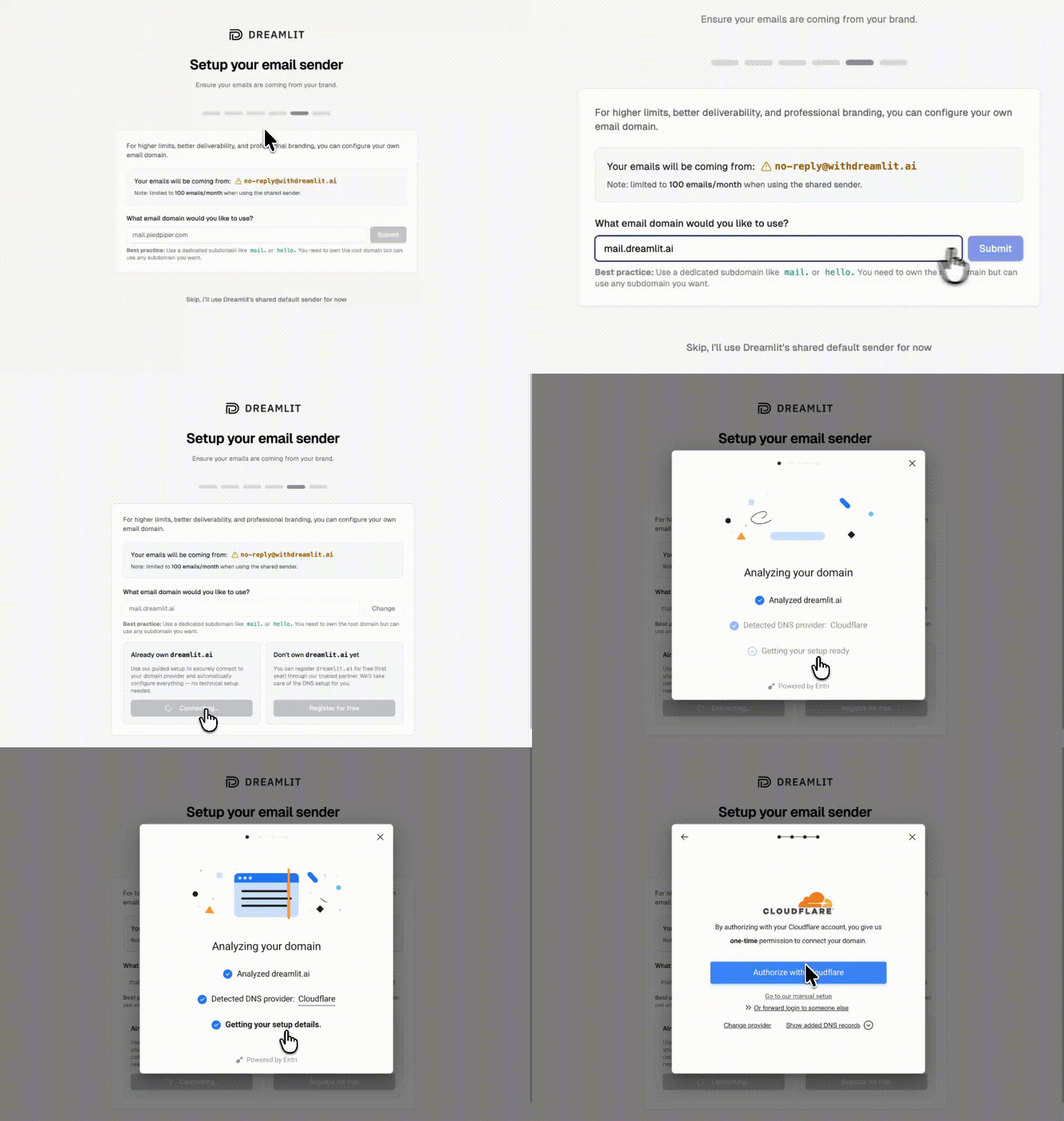 If your DNS provider isn't supported for automatic setup, you can add the records manually. Dreamlit shows you exactly what to add.
Once verified, select your domain when creating email workflows. Your emails will now come from your own brand.
This improves deliverability and looks more professional to your users. [Full domain setup guide →](/docs/configuration/email/custom-domain)
***
## FAQ
### How do I know what tables my Figma Make app created?
Check your database directly. If you're using Supabase, go to **Table Editor** in the [Supabase dashboard](https://supabase.com/dashboard). You'll see all tables your app uses. Dreamlit also shows you available tables when you create a workflow.
### Do I need to modify my Figma Make app?
Usually no. Dreamlit reacts to database changes, so if your app already writes the data you need, you're set. If you need to track something new (like form submissions), you'll need to add that table or field to your app.
### Why aren't my emails sending?
A few things to check:
1. **Is your workflow published?** Saved workflows don't run until you click Publish.
2. **Is the trigger table correct?** Verify it matches the actual table name in your database.
3. **Is data being written?** Check your database to confirm rows are created when users take actions.
4. **Try the preview.** Use the preview to test with sample data.
### Can I use this for password resets and auth emails?
Yes, if you're using Supabase Auth. Check out our [Supabase Auth Emails guide](/docs/guides/supabase-auth-emails) for one-click setup.
### Will my emails keep working after I update my Figma design?
Yes. Dreamlit connects to your database, not your Figma Make deployment. Update your design and redeploy as often as you like. Your email workflows keep running.
### Can I send Slack notifications too?
Yes. Dreamlit supports Slack alongside email. Describe what you want: "Notify our team on Slack when a new order comes in." [Learn more about Slack →](/docs/configuration/slack)
### How do I test without emailing real users?
Use the preview feature to send test emails to yourself with real data from your database. Your workflow won't email actual users until you publish it.
### What if I'm already using Resend or SendGrid?
Dreamlit works alongside traditional email providers. Since Dreamlit takes a fundamentally different approach (database-driven, AI-generated workflows), you don't need to migrate. Try Dreamlit for your next workflow and keep using your current provider for everything else.
***
## Next steps
Set up password reset, magic links, and more
Send from your own domain
More workflow examples
We're here to help
## References
* [Figma Make](https://www.figma.com/make/)
* [Dreamlit Supabase integration](/docs/configuration/data-sources/supabase)
* [Dreamlit Postgres setup guide](/docs/configuration/data-sources/postgres)
* [Supabase Auth SMTP docs](https://supabase.com/docs/guides/auth/auth-smtp)
* [Dreamlit use cases](/docs/getting-started/use-cases)
***
Last validated: 2026-04-12
If your DNS provider isn't supported for automatic setup, you can add the records manually. Dreamlit shows you exactly what to add.
Once verified, select your domain when creating email workflows. Your emails will now come from your own brand.
This improves deliverability and looks more professional to your users. [Full domain setup guide →](/docs/configuration/email/custom-domain)
***
## FAQ
### How do I know what tables my Figma Make app created?
Check your database directly. If you're using Supabase, go to **Table Editor** in the [Supabase dashboard](https://supabase.com/dashboard). You'll see all tables your app uses. Dreamlit also shows you available tables when you create a workflow.
### Do I need to modify my Figma Make app?
Usually no. Dreamlit reacts to database changes, so if your app already writes the data you need, you're set. If you need to track something new (like form submissions), you'll need to add that table or field to your app.
### Why aren't my emails sending?
A few things to check:
1. **Is your workflow published?** Saved workflows don't run until you click Publish.
2. **Is the trigger table correct?** Verify it matches the actual table name in your database.
3. **Is data being written?** Check your database to confirm rows are created when users take actions.
4. **Try the preview.** Use the preview to test with sample data.
### Can I use this for password resets and auth emails?
Yes, if you're using Supabase Auth. Check out our [Supabase Auth Emails guide](/docs/guides/supabase-auth-emails) for one-click setup.
### Will my emails keep working after I update my Figma design?
Yes. Dreamlit connects to your database, not your Figma Make deployment. Update your design and redeploy as often as you like. Your email workflows keep running.
### Can I send Slack notifications too?
Yes. Dreamlit supports Slack alongside email. Describe what you want: "Notify our team on Slack when a new order comes in." [Learn more about Slack →](/docs/configuration/slack)
### How do I test without emailing real users?
Use the preview feature to send test emails to yourself with real data from your database. Your workflow won't email actual users until you publish it.
### What if I'm already using Resend or SendGrid?
Dreamlit works alongside traditional email providers. Since Dreamlit takes a fundamentally different approach (database-driven, AI-generated workflows), you don't need to migrate. Try Dreamlit for your next workflow and keep using your current provider for everything else.
***
## Next steps
Set up password reset, magic links, and more
Send from your own domain
More workflow examples
We're here to help
## References
* [Figma Make](https://www.figma.com/make/)
* [Dreamlit Supabase integration](/docs/configuration/data-sources/supabase)
* [Dreamlit Postgres setup guide](/docs/configuration/data-sources/postgres)
* [Supabase Auth SMTP docs](https://supabase.com/docs/guides/auth/auth-smtp)
* [Dreamlit use cases](/docs/getting-started/use-cases)
***
Last validated: 2026-04-12