> ## Documentation Index
> Fetch the complete documentation index at: https://notikaai.mintlify.site/llms.txt
> Use this file to discover all available pages before exploring further.
# Cursor Email: Send Notifications Without Breaking Your Flow
> Add email to your Cursor app in minutes. Describe what you want in plain English, and Dreamlit builds the workflow.
## How do I add email to my Cursor app?
You're in flow with [Cursor](https://cursor.com). AI writes your code, suggests fixes, keeps you moving. Then you need to add email, and suddenly you're wiring up SMTP, hand-coding HTML templates, and debugging webhook payloads. Flow broken.
Dreamlit brings the same AI-first approach to email. It securely connects to your Postgres database and reacts to data changes directly. Your app writes a row; Dreamlit sends the email. No SDK to install, no API calls to add to your codebase, no deployment changes. It works with any Postgres provider (Supabase, Neon, Railway, Render, RDS, or self-hosted), so it fits whatever stack Cursor helped you build.
## Who is this guide for?
* **Cursor developers** who want email without the infrastructure detour
* **Anyone with a Postgres database** (Supabase, Neon, Railway, RDS, or self-hosted)
* **Teams** who want non-technical teammates to edit email copy without touching code
## Why use Dreamlit instead of building email in Cursor?
You could ask Cursor to wire up an email provider and write the integration. It'll generate working code. But then:
1. How do you preview that email with real user data before it goes out?
2. How do you track who opened it? Who clicked?
3. What happens when emails bounce?
4. Are you setting up DKIM and SPF records for deliverability?
5. What about retry logic when the provider has an outage?
6. What about scheduled emails? Recurring digests? Drip sequences?
7. After you've built a few workflows, how do you see how they're all performing in one place?
8. How do you iterate on email copy without redeploying your app?
Or just use Dreamlit and skip all of that. We handle it end-to-end.
## What do I need before starting?
* A **PostgreSQL database** for your app (Supabase, Neon, Railway, Render, AWS RDS, Google Cloud SQL, or any Postgres)
* 5 minutes
***
## How do I connect Dreamlit to my database?
Dreamlit works with any PostgreSQL database. The setup depends on which provider you're using.
If your Cursor app uses Supabase, connecting is two clicks:
Go to [app.dreamlit.ai](https://app.dreamlit.ai) and sign up.
Click **Connect Supabase** and authorize the connection. Dreamlit securely connects to your Supabase project.
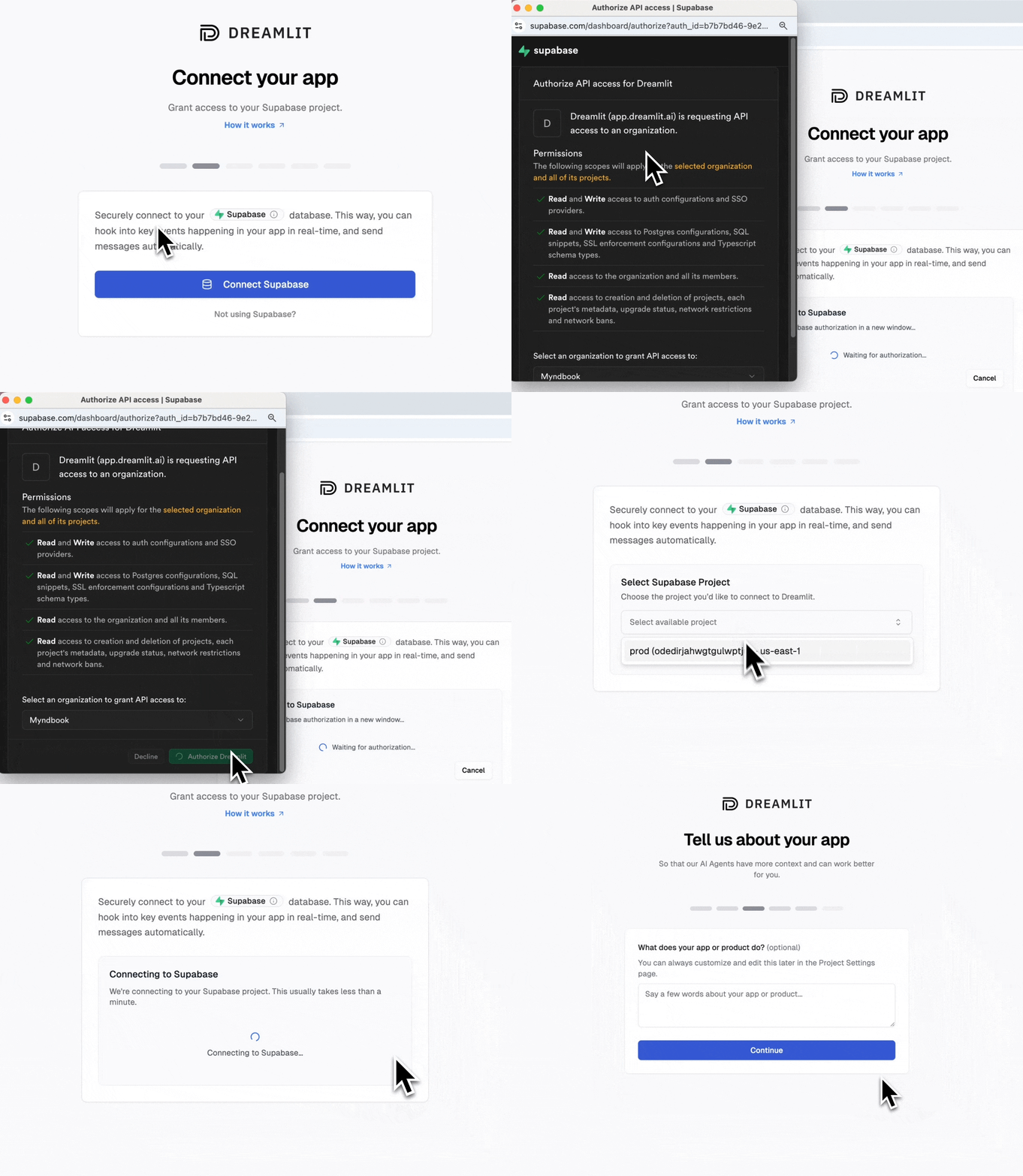 **That's it. 2 clicks and you're connected.**
**Need auth emails?** (password reset, magic links, email verification) Check out our [Supabase Auth Emails guide](/docs/guides/supabase-auth-emails) for one-click setup.
Go to [app.dreamlit.ai](https://app.dreamlit.ai) and sign up.
In your Neon dashboard, copy your **pooled connection string**. It looks like:
```
postgresql://user:password@ep-xxx.region.aws.neon.tech/dbname
```
Click **Connect Postgres** and paste your connection string. Follow the guided setup to grant Dreamlit the minimal permissions it needs.
For detailed setup instructions, see [commands to set up your database user](/docs/configuration/data-sources/postgres#commands-to-run-to-setup-your-dreamlit_app-database-user).
Go to [app.dreamlit.ai](https://app.dreamlit.ai) and sign up.
In your Railway or Render dashboard, find your Postgres connection string under your database settings.
Click **Connect Postgres** and paste your connection string. Follow the guided setup to grant Dreamlit the minimal permissions it needs.
For detailed setup instructions, see [commands to set up your database user](/docs/configuration/data-sources/postgres#commands-to-run-to-setup-your-dreamlit_app-database-user).
Go to [app.dreamlit.ai](https://app.dreamlit.ai) and sign up.
You'll need your database host, port, database name, and credentials.
Click **Connect Postgres** and enter your connection details. Follow the guided setup to create a dedicated `dreamlit_app` user with minimal permissions.
For detailed setup instructions, see [commands to set up your database user](/docs/configuration/data-sources/postgres#commands-to-run-to-setup-your-dreamlit_app-database-user).
***
## How do I create my first email workflow?
Here's an example: setting up a welcome email that sends when someone signs up.
### Step 1: Create the workflow
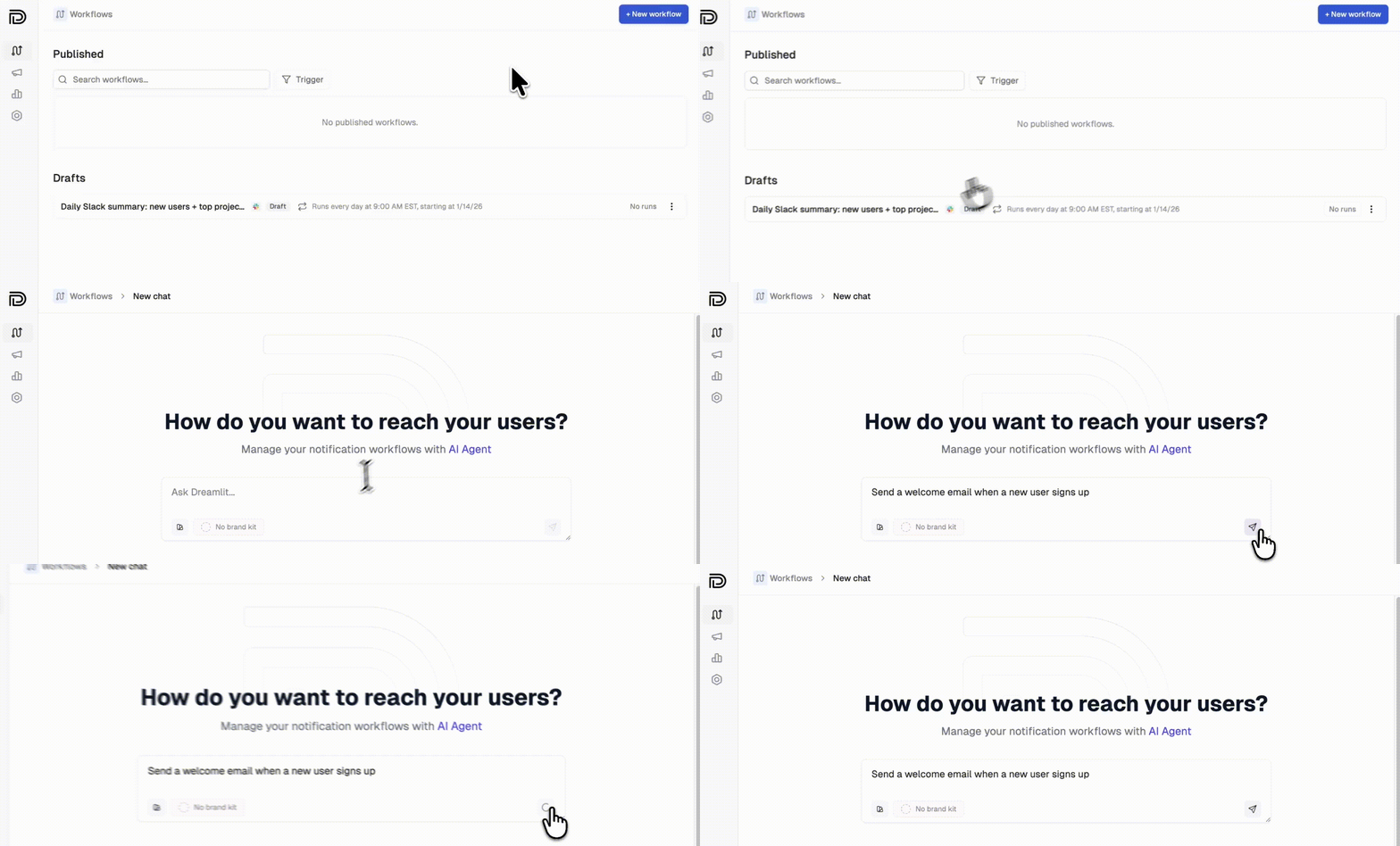
Click **Create Workflow** and describe what you want:
> "Send a welcome email when a new user signs up"
The AI generates everything: the database trigger, email template, and copy.
**That's it. 2 clicks and you're connected.**
**Need auth emails?** (password reset, magic links, email verification) Check out our [Supabase Auth Emails guide](/docs/guides/supabase-auth-emails) for one-click setup.
Go to [app.dreamlit.ai](https://app.dreamlit.ai) and sign up.
In your Neon dashboard, copy your **pooled connection string**. It looks like:
```
postgresql://user:password@ep-xxx.region.aws.neon.tech/dbname
```
Click **Connect Postgres** and paste your connection string. Follow the guided setup to grant Dreamlit the minimal permissions it needs.
For detailed setup instructions, see [commands to set up your database user](/docs/configuration/data-sources/postgres#commands-to-run-to-setup-your-dreamlit_app-database-user).
Go to [app.dreamlit.ai](https://app.dreamlit.ai) and sign up.
In your Railway or Render dashboard, find your Postgres connection string under your database settings.
Click **Connect Postgres** and paste your connection string. Follow the guided setup to grant Dreamlit the minimal permissions it needs.
For detailed setup instructions, see [commands to set up your database user](/docs/configuration/data-sources/postgres#commands-to-run-to-setup-your-dreamlit_app-database-user).
Go to [app.dreamlit.ai](https://app.dreamlit.ai) and sign up.
You'll need your database host, port, database name, and credentials.
Click **Connect Postgres** and enter your connection details. Follow the guided setup to create a dedicated `dreamlit_app` user with minimal permissions.
For detailed setup instructions, see [commands to set up your database user](/docs/configuration/data-sources/postgres#commands-to-run-to-setup-your-dreamlit_app-database-user).
***
## How do I create my first email workflow?
Here's an example: setting up a welcome email that sends when someone signs up.
### Step 1: Create the workflow
Click **Create Workflow** and describe what you want:
> "Send a welcome email when a new user signs up"
The AI generates everything: the database trigger, email template, and copy.
 ### Step 2: Preview with live data
Click any step to open the preview panel and see real data from your database flowing through the workflow.
* **Query steps** show the data being fetched or filtered
* **Email steps** show the fully rendered email with actual user data
Click **Preview with different data** to test different scenarios.
### Step 3: Customize your email
The AI generates a starting point, but you can refine it:
* **Hover to edit**: Hover over any text in the email preview and click to edit inline. Change headlines, body copy, or button text directly.
* **Brand styles**: Go to **Settings → Brand Styles** to define your logo, colors, fonts, and visual style. The AI can apply your brand when generating email designs. [Learn more about Brand Styles →](/docs/configuration/email/brand-styles)
* **Chat with AI**: Ask Dreamlit to make changes: "Make the tone more casual" or "Add a section about our mobile app."
### Step 4: Publish
Once you're happy with the preview, click **Publish**. Dreamlit installs a lightweight trigger on your database and starts reacting to new signups.
***
## How does Cursor work with Dreamlit?
Dreamlit triggers emails based on database changes. When building with Cursor, focus on getting data into your database. Dreamlit handles the notification logic.
**Common patterns:**
| You want... | Write code that... |
| --------------------- | ------------------------------------------------------------ |
| Welcome emails | Inserts a row into `users` on signup |
| Order confirmations | Inserts a row into `orders` on checkout |
| Comment notifications | Inserts a row into `comments` with the author and post |
| Payment receipts | Inserts or updates a row in `payments` when payment succeeds |
| Activity alerts | Logs actions to an `activity` or `events` table |
**You don't need to write any email code.** Just make sure the data lands in your database, and Dreamlit takes it from there.
**Pro tip:** Ask Cursor to help you add the database write. Try prompting: "When a user completes checkout, insert the order details into an `orders` table."
***
## Will my emails work if I change hosting providers?
Dreamlit connects to your database, not your hosting provider. Whether you deploy to:
* **Vercel**
* **Railway**
* **Render**
* **Fly.io**
* **AWS / GCP / Azure**
* **Self-hosted**
Your email workflows keep running. Change hosting providers, spin up new environments. Dreamlit reacts to database changes and handles the rest.
***
## What other workflows can I build?
Any workflow that triggers on a database change. Check out our [use cases](/docs/getting-started/use-cases) for example prompts across welcome emails, order confirmations, reminders, internal alerts, and more.
***
## How do I send from my own domain?
By default, emails send from Dreamlit's domain. To send from your own domain (like `hello@yourapp.com`), set up a custom email domain in minutes.
Go to **Settings → Email Domains** and click **Add domain**. Enter your domain (we recommend a subdomain like `mail.yourapp.com`).
Dreamlit can automatically configure your DNS records for you. Just click **Verify with your DNS provider**, sign in to your provider, and authorize the changes.
### Step 2: Preview with live data
Click any step to open the preview panel and see real data from your database flowing through the workflow.
* **Query steps** show the data being fetched or filtered
* **Email steps** show the fully rendered email with actual user data
Click **Preview with different data** to test different scenarios.
### Step 3: Customize your email
The AI generates a starting point, but you can refine it:
* **Hover to edit**: Hover over any text in the email preview and click to edit inline. Change headlines, body copy, or button text directly.
* **Brand styles**: Go to **Settings → Brand Styles** to define your logo, colors, fonts, and visual style. The AI can apply your brand when generating email designs. [Learn more about Brand Styles →](/docs/configuration/email/brand-styles)
* **Chat with AI**: Ask Dreamlit to make changes: "Make the tone more casual" or "Add a section about our mobile app."
### Step 4: Publish
Once you're happy with the preview, click **Publish**. Dreamlit installs a lightweight trigger on your database and starts reacting to new signups.
***
## How does Cursor work with Dreamlit?
Dreamlit triggers emails based on database changes. When building with Cursor, focus on getting data into your database. Dreamlit handles the notification logic.
**Common patterns:**
| You want... | Write code that... |
| --------------------- | ------------------------------------------------------------ |
| Welcome emails | Inserts a row into `users` on signup |
| Order confirmations | Inserts a row into `orders` on checkout |
| Comment notifications | Inserts a row into `comments` with the author and post |
| Payment receipts | Inserts or updates a row in `payments` when payment succeeds |
| Activity alerts | Logs actions to an `activity` or `events` table |
**You don't need to write any email code.** Just make sure the data lands in your database, and Dreamlit takes it from there.
**Pro tip:** Ask Cursor to help you add the database write. Try prompting: "When a user completes checkout, insert the order details into an `orders` table."
***
## Will my emails work if I change hosting providers?
Dreamlit connects to your database, not your hosting provider. Whether you deploy to:
* **Vercel**
* **Railway**
* **Render**
* **Fly.io**
* **AWS / GCP / Azure**
* **Self-hosted**
Your email workflows keep running. Change hosting providers, spin up new environments. Dreamlit reacts to database changes and handles the rest.
***
## What other workflows can I build?
Any workflow that triggers on a database change. Check out our [use cases](/docs/getting-started/use-cases) for example prompts across welcome emails, order confirmations, reminders, internal alerts, and more.
***
## How do I send from my own domain?
By default, emails send from Dreamlit's domain. To send from your own domain (like `hello@yourapp.com`), set up a custom email domain in minutes.
Go to **Settings → Email Domains** and click **Add domain**. Enter your domain (we recommend a subdomain like `mail.yourapp.com`).
Dreamlit can automatically configure your DNS records for you. Just click **Verify with your DNS provider**, sign in to your provider, and authorize the changes.
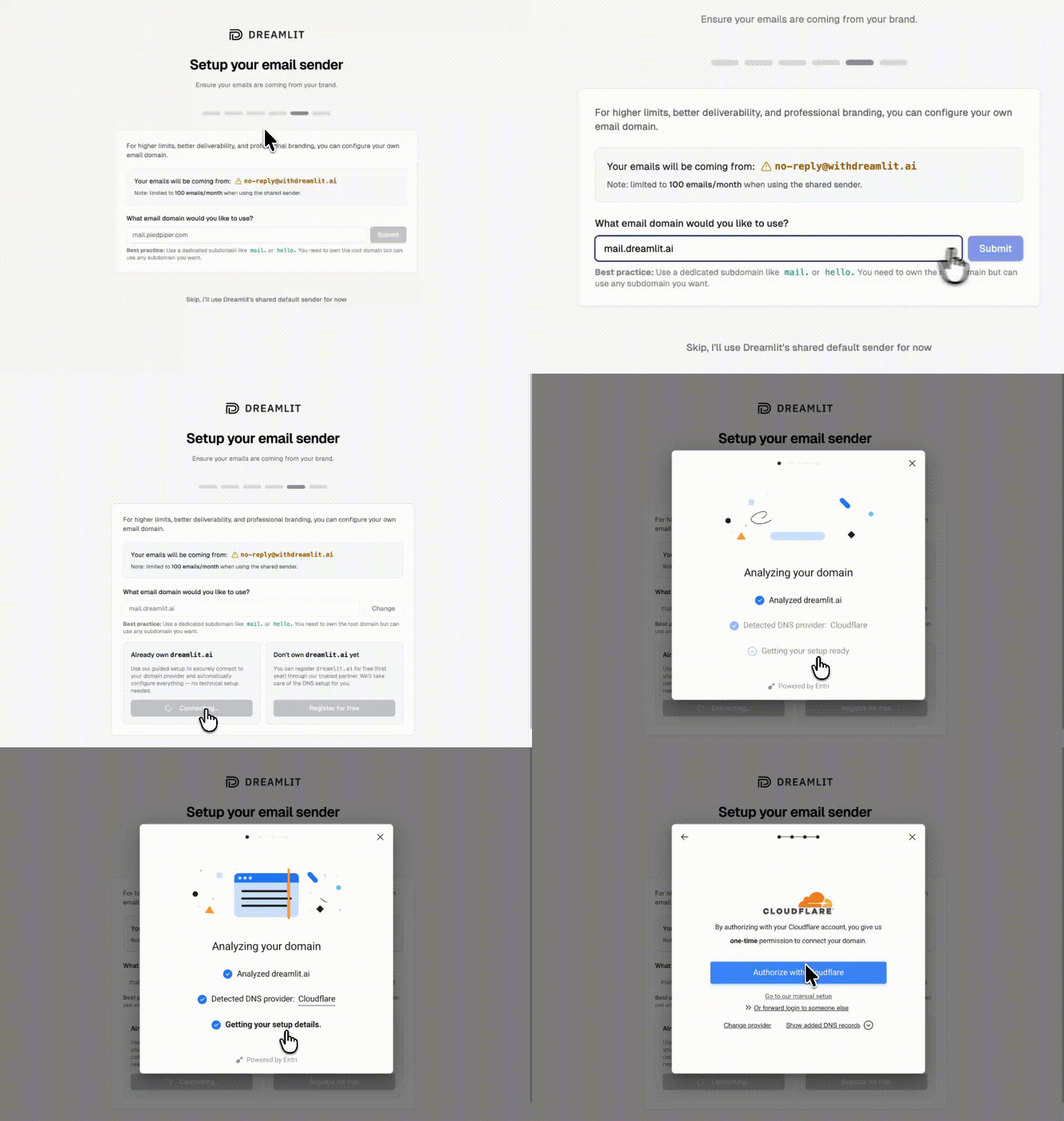 If your DNS provider isn't supported for automatic setup, you can add the records manually. Dreamlit shows you exactly what to add.
Once verified, select your domain when creating email workflows. Your emails will now come from your own brand.
This improves deliverability and looks more professional to your users. [Full domain setup guide →](/docs/configuration/email/custom-domain)
***
## FAQ
### What databases does Dreamlit support?
Dreamlit works with any PostgreSQL-compatible database: Supabase, Neon, Railway, Render, AWS RDS, Google Cloud SQL, Azure Database for PostgreSQL, CockroachDB, and self-hosted Postgres. Support for additional databases is coming soon.
### Why aren't my emails sending?
A few things to check:
1. **Is your workflow published?** Saved workflows don't run until you click Publish.
2. **Is the trigger table correct?** Make sure it matches where your app actually writes data.
3. **Is data being written?** Check your database to confirm rows are being created.
4. **Try the preview.** Use the preview to test with sample data and verify the workflow runs.
### Do I need to change my deployment?
No. Dreamlit connects to your database, not your hosting. Deploy your Cursor-built app anywhere: Vercel, Railway, Render, AWS, or self-hosted. As long as Dreamlit can reach your database, your email workflows will run.
### Can I use this with any framework Cursor generates?
Yes. Dreamlit works with Next.js, React, Vue, SvelteKit, Express, FastAPI, Django, Rails, and any other framework that writes to a Postgres database. The framework doesn't matter. The database does.
### Can Cursor edit my Dreamlit workflows?
No, and that's the point. Your email workflows live in Dreamlit, separate from your codebase. This means you can iterate on emails without touching code, and non-technical teammates can make changes too.
### Can I send Slack notifications too?
Yes. Dreamlit supports Slack alongside email. Just describe what you want: "Notify our team on Slack when a new order comes in." [Learn more about Slack →](/docs/configuration/slack)
### How do I test without emailing real users?
Use the preview feature to send test emails to yourself with real data from your database. Your workflow won't email actual users until you publish it.
### What if I'm already using Resend, SendGrid, or another email provider?
Dreamlit works alongside traditional email providers. Since Dreamlit takes a fundamentally different approach (database-driven, AI-generated workflows), you don't need to migrate off your existing setup. Try Dreamlit for your next workflow and keep using your current provider for everything else.
***
## Next steps
Set up password reset, magic links, and more
Send from your own domain
More workflow examples
We're here to help
## References
* [Dreamlit Postgres setup guide](/docs/configuration/data-sources/postgres)
* [Dreamlit Supabase integration](/docs/configuration/data-sources/supabase)
* [Supabase Auth SMTP docs](https://supabase.com/docs/guides/auth/auth-smtp)
* [Dreamlit use cases](/docs/getting-started/use-cases)
***
Last validated: 2026-04-12
If your DNS provider isn't supported for automatic setup, you can add the records manually. Dreamlit shows you exactly what to add.
Once verified, select your domain when creating email workflows. Your emails will now come from your own brand.
This improves deliverability and looks more professional to your users. [Full domain setup guide →](/docs/configuration/email/custom-domain)
***
## FAQ
### What databases does Dreamlit support?
Dreamlit works with any PostgreSQL-compatible database: Supabase, Neon, Railway, Render, AWS RDS, Google Cloud SQL, Azure Database for PostgreSQL, CockroachDB, and self-hosted Postgres. Support for additional databases is coming soon.
### Why aren't my emails sending?
A few things to check:
1. **Is your workflow published?** Saved workflows don't run until you click Publish.
2. **Is the trigger table correct?** Make sure it matches where your app actually writes data.
3. **Is data being written?** Check your database to confirm rows are being created.
4. **Try the preview.** Use the preview to test with sample data and verify the workflow runs.
### Do I need to change my deployment?
No. Dreamlit connects to your database, not your hosting. Deploy your Cursor-built app anywhere: Vercel, Railway, Render, AWS, or self-hosted. As long as Dreamlit can reach your database, your email workflows will run.
### Can I use this with any framework Cursor generates?
Yes. Dreamlit works with Next.js, React, Vue, SvelteKit, Express, FastAPI, Django, Rails, and any other framework that writes to a Postgres database. The framework doesn't matter. The database does.
### Can Cursor edit my Dreamlit workflows?
No, and that's the point. Your email workflows live in Dreamlit, separate from your codebase. This means you can iterate on emails without touching code, and non-technical teammates can make changes too.
### Can I send Slack notifications too?
Yes. Dreamlit supports Slack alongside email. Just describe what you want: "Notify our team on Slack when a new order comes in." [Learn more about Slack →](/docs/configuration/slack)
### How do I test without emailing real users?
Use the preview feature to send test emails to yourself with real data from your database. Your workflow won't email actual users until you publish it.
### What if I'm already using Resend, SendGrid, or another email provider?
Dreamlit works alongside traditional email providers. Since Dreamlit takes a fundamentally different approach (database-driven, AI-generated workflows), you don't need to migrate off your existing setup. Try Dreamlit for your next workflow and keep using your current provider for everything else.
***
## Next steps
Set up password reset, magic links, and more
Send from your own domain
More workflow examples
We're here to help
## References
* [Dreamlit Postgres setup guide](/docs/configuration/data-sources/postgres)
* [Dreamlit Supabase integration](/docs/configuration/data-sources/supabase)
* [Supabase Auth SMTP docs](https://supabase.com/docs/guides/auth/auth-smtp)
* [Dreamlit use cases](/docs/getting-started/use-cases)
***
Last validated: 2026-04-12