> ## Documentation Index
> Fetch the complete documentation index at: https://notikaai.mintlify.site/llms.txt
> Use this file to discover all available pages before exploring further.
# Bolt.new Email: Send Notifications Without the Infrastructure
> Add email to your Bolt.new app in minutes. Describe what you want in plain English, and Dreamlit builds the workflow.
## How do I add email to my Bolt.new app?
You shipped your [Bolt.new](https://bolt.new) app in an afternoon. Notifications shouldn't take longer than the app itself.
Dreamlit securely connects to your Supabase database and reacts to changes in real time. Your app writes data; Dreamlit sends the email.
* Payment processed → receipt sent
* User invited → invite email
* Error logged → team alert
No SMTP configs, no HTML templates, no deliverability settings to manage.
## Who is this guide for?
* **Bolt.new builders** who need transactional email without slowing down
* **Vibe coders** who want to ship notifications as fast as they ship features
* **Anyone on Bolt.new + Supabase** looking for professional, on-brand emails
## Why use Dreamlit instead of building email in Bolt.new?
You could prompt Bolt.new to wire up Resend or SendGrid. It'll generate the integration code. But then:
1. How do you preview that email with real user data before it goes out?
2. How do you track who opened it? Who clicked?
3. What happens when emails bounce?
4. Are you setting up DKIM and SPF records for deliverability?
5. What about retry logic when the provider has an outage?
6. What about scheduled emails? Recurring digests? Drip sequences?
7. After you've built a few workflows, how do you see how they're all performing in one place?
8. How do you let non-technical teammates edit email copy without touching code?
Or just use Dreamlit and skip all of that. We handle it end-to-end.
## What do I need before starting?
* A Bolt.new app using **Supabase** for the database
* 5 minutes
***
## Does my Bolt.new project use Supabase?
Dreamlit securely connects to your Supabase database and uses changes as triggers for emails. Here's how to check if your project is set up correctly.
### Projects created before September 30, 2025
Good news: Supabase was the default database for older Bolt.new projects. Your project likely already has Supabase connected. You can verify by clicking the database icon in your project or going to **Project Settings**.
### Projects created after September 30, 2025
Newer Bolt.new projects use "Bolt databases" by default. If you chose Supabase during initial setup, you're good to go. If not, you can [**claim your Bolt database**](https://support.bolt.new/integrations/supabase#claim-your-bolt-database-in-supabase) to get direct Supabase access.
***
## How do I connect Dreamlit to my Supabase?
Go to [app.dreamlit.ai](https://app.dreamlit.ai) and sign up.
Click **Connect Supabase** and authorize the connection. This connects to the same Supabase project your Bolt.new app uses.
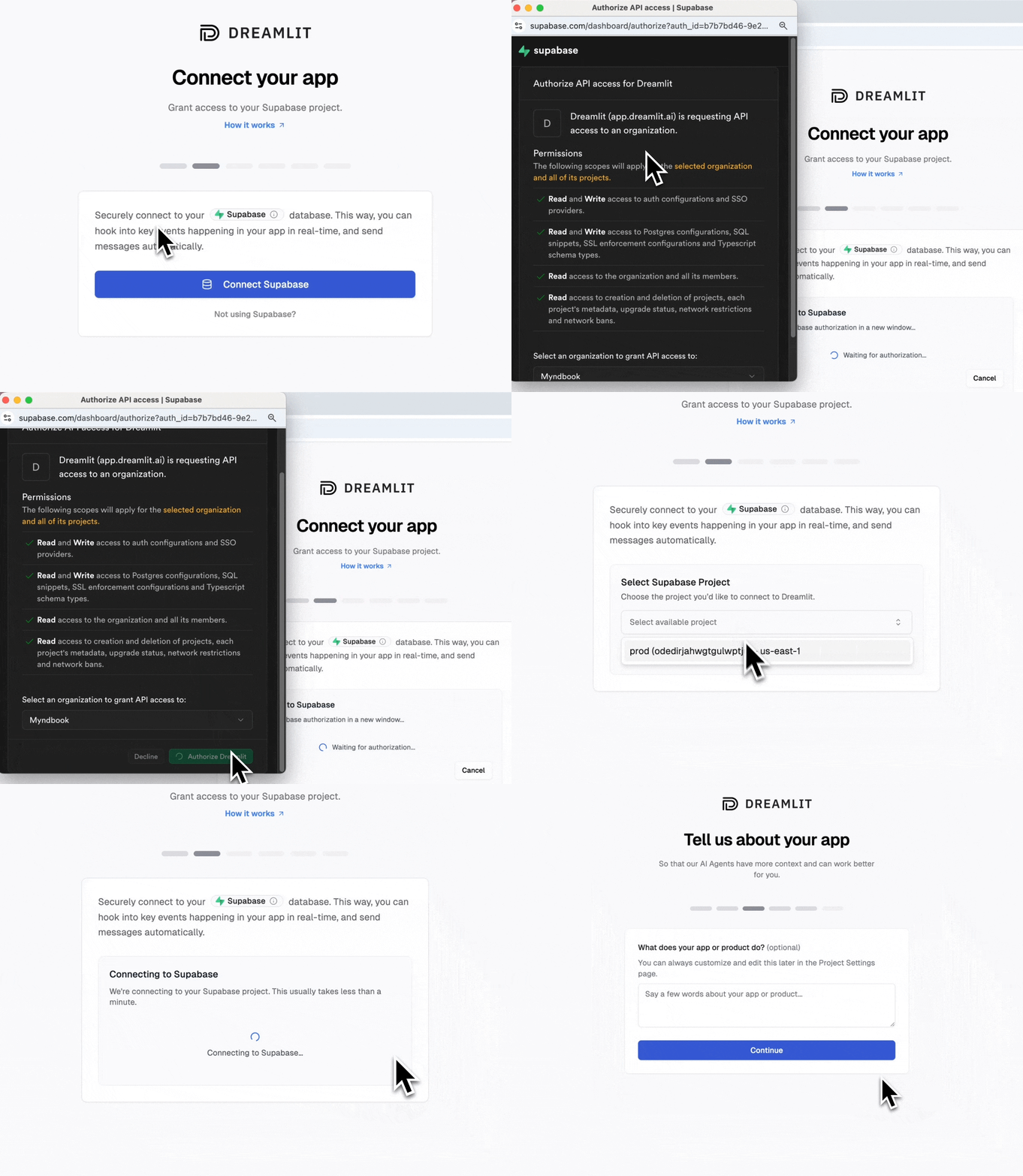 **That's it. 2 clicks and you're connected.** Dreamlit is now connected to your database and you're ready to create workflows.
**Need auth emails?** (password reset, magic links, email verification) Check out our [Supabase Auth Emails guide](/docs/guides/supabase-auth-emails) for one-click setup.
***
## How do I create my first email workflow?
Here's an example: setting up a welcome email that sends when someone signs up. You can use this pattern for any workflow where you record data in your database.
### Step 1: Create the workflow in Dreamlit
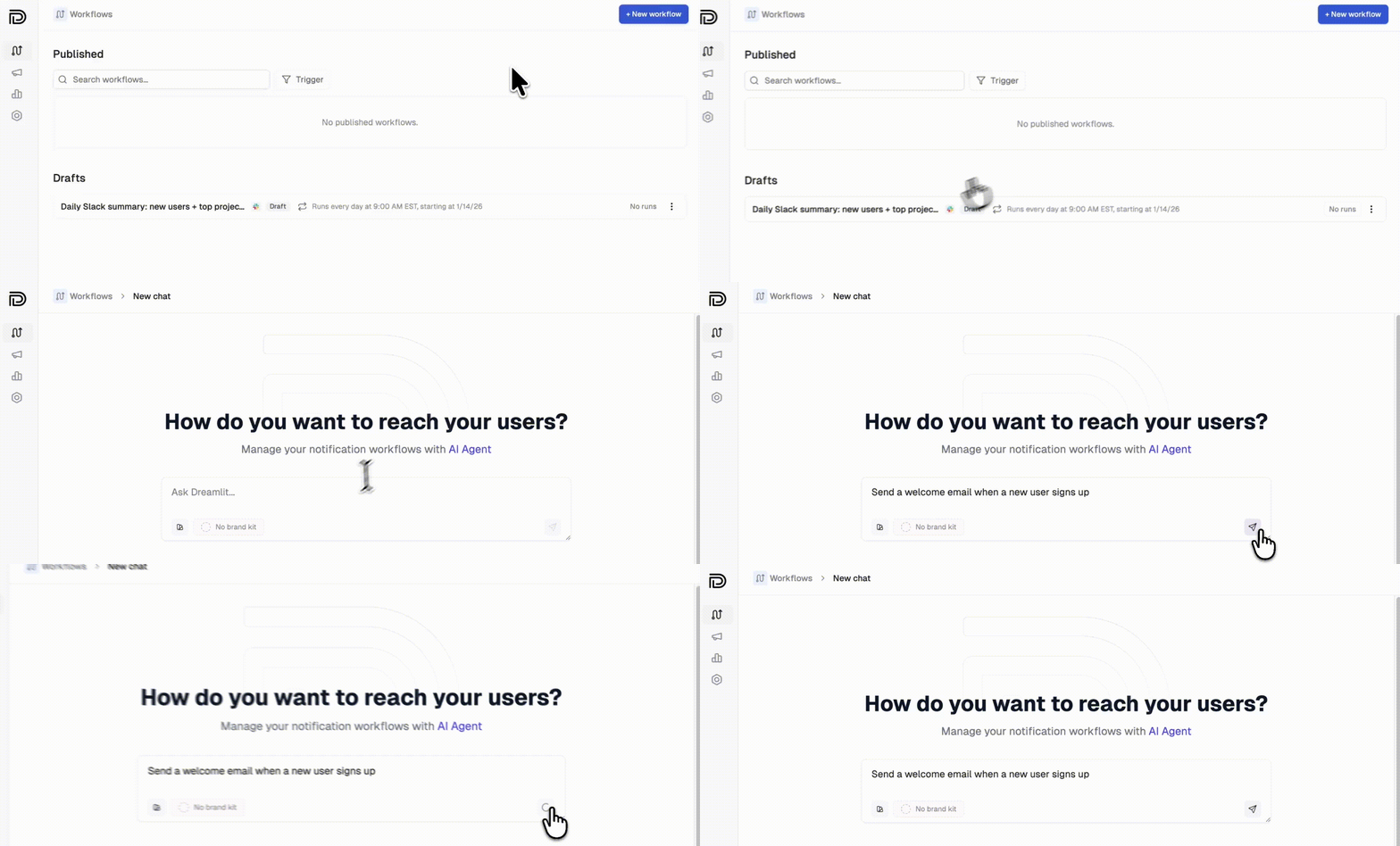
Click **Create Workflow** and describe what you want:
> "Send a welcome email when a new user signs up"
The AI generates everything: the database trigger, email template, and copy.
**That's it. 2 clicks and you're connected.** Dreamlit is now connected to your database and you're ready to create workflows.
**Need auth emails?** (password reset, magic links, email verification) Check out our [Supabase Auth Emails guide](/docs/guides/supabase-auth-emails) for one-click setup.
***
## How do I create my first email workflow?
Here's an example: setting up a welcome email that sends when someone signs up. You can use this pattern for any workflow where you record data in your database.
### Step 1: Create the workflow in Dreamlit
Click **Create Workflow** and describe what you want:
> "Send a welcome email when a new user signs up"
The AI generates everything: the database trigger, email template, and copy.
 ### Step 2: Update your Bolt.new app (if needed)
Here's the key insight: **Dreamlit securely connects to your database and reacts to changes, not your code.** When a new row appears in your `users` or `auth.users` table, Dreamlit sends the email automatically.
If you're using Supabase Auth, users are automatically added to the `auth.users` table when they sign up. No extra table needed.
If your Bolt.new app already creates user records on signup, you're done. No code changes needed.
If you need to add a field or table for Dreamlit to use as a trigger, prompt Bolt:
> "When a user signs up, add a row to the `user_signups` table with their email and name"
Or for something like order confirmations:
> "When a user completes checkout, insert a row into the `orders` table with the order details"
### Step 3: Preview and publish
Preview your email with real data from your database, then click **Publish**.
***
## How does Bolt.new work with Dreamlit?
Dreamlit triggers emails based on database changes. When prompting Bolt.new, focus on getting data into your database. Dreamlit handles the rest.
**Good prompts for Bolt.new:**
| You want... | Prompt Bolt.new with... |
| --------------------- | ------------------------------------------------------------------ |
| Welcome emails | "Store new signups in a `user_signups` table" |
| Order confirmations | "Insert order details into `orders` when checkout completes" |
| Comment notifications | "Save comments to a `comments` table with the post\_id and author" |
| Activity alerts | "Log user actions to an `activity` table" |
**You don't need to prompt Bolt.new about emails at all.** Just make sure the data lands in your database, and Dreamlit takes it from there.
***
## What other workflows can I build?
Any workflow that triggers on a database change. Check out our [use cases](/docs/getting-started/use-cases) for example prompts across welcome emails, order confirmations, reminders, internal alerts, and more.
***
## How do I send from my own domain?
By default, emails send from Dreamlit's domain. To send from your own domain (like `hello@yourapp.com`), set up a custom email domain in minutes.
Go to **Settings → Email Domains** and click **Add domain**. Enter your domain (we recommend a subdomain like `mail.yourapp.com`).
Dreamlit can automatically configure your DNS records for you. Just click **Verify with your DNS provider**, sign in to your provider, and authorize the changes.
### Step 2: Update your Bolt.new app (if needed)
Here's the key insight: **Dreamlit securely connects to your database and reacts to changes, not your code.** When a new row appears in your `users` or `auth.users` table, Dreamlit sends the email automatically.
If you're using Supabase Auth, users are automatically added to the `auth.users` table when they sign up. No extra table needed.
If your Bolt.new app already creates user records on signup, you're done. No code changes needed.
If you need to add a field or table for Dreamlit to use as a trigger, prompt Bolt:
> "When a user signs up, add a row to the `user_signups` table with their email and name"
Or for something like order confirmations:
> "When a user completes checkout, insert a row into the `orders` table with the order details"
### Step 3: Preview and publish
Preview your email with real data from your database, then click **Publish**.
***
## How does Bolt.new work with Dreamlit?
Dreamlit triggers emails based on database changes. When prompting Bolt.new, focus on getting data into your database. Dreamlit handles the rest.
**Good prompts for Bolt.new:**
| You want... | Prompt Bolt.new with... |
| --------------------- | ------------------------------------------------------------------ |
| Welcome emails | "Store new signups in a `user_signups` table" |
| Order confirmations | "Insert order details into `orders` when checkout completes" |
| Comment notifications | "Save comments to a `comments` table with the post\_id and author" |
| Activity alerts | "Log user actions to an `activity` table" |
**You don't need to prompt Bolt.new about emails at all.** Just make sure the data lands in your database, and Dreamlit takes it from there.
***
## What other workflows can I build?
Any workflow that triggers on a database change. Check out our [use cases](/docs/getting-started/use-cases) for example prompts across welcome emails, order confirmations, reminders, internal alerts, and more.
***
## How do I send from my own domain?
By default, emails send from Dreamlit's domain. To send from your own domain (like `hello@yourapp.com`), set up a custom email domain in minutes.
Go to **Settings → Email Domains** and click **Add domain**. Enter your domain (we recommend a subdomain like `mail.yourapp.com`).
Dreamlit can automatically configure your DNS records for you. Just click **Verify with your DNS provider**, sign in to your provider, and authorize the changes.
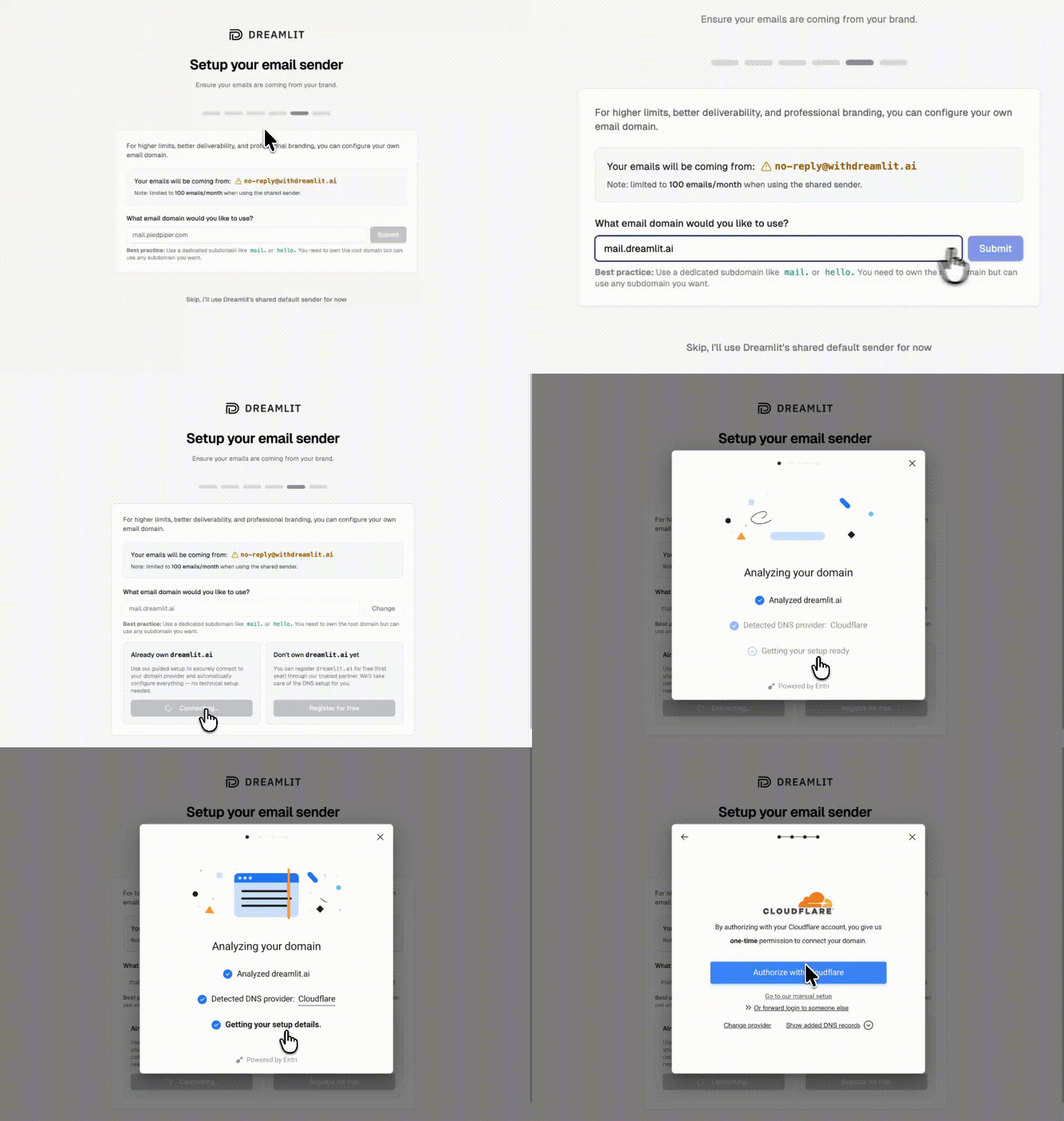 If your DNS provider isn't supported for automatic setup, you can add the records manually. Dreamlit shows you exactly what to add.
Once verified, select your domain when creating email workflows. Your emails will now come from your own brand.
This improves deliverability and looks more professional to your users. [Full domain setup guide →](/docs/configuration/email/custom-domain)
***
## FAQ
### What if my project uses a Bolt database instead of Supabase?
You can [**claim your Bolt database**](https://support.bolt.new/integrations/supabase#claim-your-bolt-database-in-supabase) to get direct Supabase access, then connect that to Dreamlit.
### Why aren't my emails sending?
A few things to check:
1. **Is your workflow published?** Saved workflows don't run until you click Publish.
2. **Is the trigger table correct?** Bolt.new might name tables differently than you expect. Check your [Supabase dashboard](https://supabase.com/dashboard) to see the actual table names.
3. **Is data being written?** Check your Supabase dashboard to confirm rows are being created when users take actions.
4. **Try the preview.** Use the preview to test with sample data and verify the workflow runs.
### Do I need to change my Bolt.new app code?
Usually no. Dreamlit reacts to database changes, so if your app already writes the data you need, you're all set. If you need to track something new (like order completions), just prompt Bolt.new to add the database write.
### Will my emails keep working if I redeploy my Bolt.new app?
Yes. Dreamlit connects to your Supabase database, not your Bolt.new deployment. Redeploy as often as you like. Your email workflows keep running.
### Can I send Slack notifications too?
Yes. Dreamlit supports Slack alongside email. Just describe what you want: "Notify our team on Slack when a new order comes in." [Learn more about Slack →](/docs/configuration/slack)
### How do I test without emailing real users?
Use the preview feature to send test emails to yourself with real data from your database. Your workflow won't email actual users until you publish it.
### What if I'm already using Resend, SendGrid, or another email provider?
Dreamlit works alongside traditional email providers. Since Dreamlit takes a fundamentally different approach (database-driven, AI-generated workflows), you don't need to migrate off your existing setup. Try Dreamlit for your next workflow and keep using your current provider for everything else.
***
## Next steps
Set up password reset, magic links, and more
Send from your own domain
More workflow examples
We're here to help
## References
* [Bolt.new Supabase integration](https://support.bolt.new/integrations/supabase)
* [Claiming your Bolt database in Supabase](https://support.bolt.new/integrations/supabase#claim-your-bolt-database-in-supabase)
* [Supabase Auth SMTP docs](https://supabase.com/docs/guides/auth/auth-smtp)
* [Dreamlit use cases](/docs/getting-started/use-cases)
***
Last validated: 2026-04-12
If your DNS provider isn't supported for automatic setup, you can add the records manually. Dreamlit shows you exactly what to add.
Once verified, select your domain when creating email workflows. Your emails will now come from your own brand.
This improves deliverability and looks more professional to your users. [Full domain setup guide →](/docs/configuration/email/custom-domain)
***
## FAQ
### What if my project uses a Bolt database instead of Supabase?
You can [**claim your Bolt database**](https://support.bolt.new/integrations/supabase#claim-your-bolt-database-in-supabase) to get direct Supabase access, then connect that to Dreamlit.
### Why aren't my emails sending?
A few things to check:
1. **Is your workflow published?** Saved workflows don't run until you click Publish.
2. **Is the trigger table correct?** Bolt.new might name tables differently than you expect. Check your [Supabase dashboard](https://supabase.com/dashboard) to see the actual table names.
3. **Is data being written?** Check your Supabase dashboard to confirm rows are being created when users take actions.
4. **Try the preview.** Use the preview to test with sample data and verify the workflow runs.
### Do I need to change my Bolt.new app code?
Usually no. Dreamlit reacts to database changes, so if your app already writes the data you need, you're all set. If you need to track something new (like order completions), just prompt Bolt.new to add the database write.
### Will my emails keep working if I redeploy my Bolt.new app?
Yes. Dreamlit connects to your Supabase database, not your Bolt.new deployment. Redeploy as often as you like. Your email workflows keep running.
### Can I send Slack notifications too?
Yes. Dreamlit supports Slack alongside email. Just describe what you want: "Notify our team on Slack when a new order comes in." [Learn more about Slack →](/docs/configuration/slack)
### How do I test without emailing real users?
Use the preview feature to send test emails to yourself with real data from your database. Your workflow won't email actual users until you publish it.
### What if I'm already using Resend, SendGrid, or another email provider?
Dreamlit works alongside traditional email providers. Since Dreamlit takes a fundamentally different approach (database-driven, AI-generated workflows), you don't need to migrate off your existing setup. Try Dreamlit for your next workflow and keep using your current provider for everything else.
***
## Next steps
Set up password reset, magic links, and more
Send from your own domain
More workflow examples
We're here to help
## References
* [Bolt.new Supabase integration](https://support.bolt.new/integrations/supabase)
* [Claiming your Bolt database in Supabase](https://support.bolt.new/integrations/supabase#claim-your-bolt-database-in-supabase)
* [Supabase Auth SMTP docs](https://supabase.com/docs/guides/auth/auth-smtp)
* [Dreamlit use cases](/docs/getting-started/use-cases)
***
Last validated: 2026-04-12