> ## Documentation Index
> Fetch the complete documentation index at: https://notikaai.mintlify.site/llms.txt
> Use this file to discover all available pages before exploring further.
# Slack
> Keep your team in the loop on key events such as high-value signups, system alerts, daily digests, or important product usage events.
By leveraging Dreamlit, you keep your codebase clean, without having to pepper in Slack
API calls. Since these notifications run independently from your application code, you get a more robust system
with fewer points of failure.
And of course, anyone on the team can easily configure, test, and update these flows, all in one place - not just engineers.
Currently, this integration is designed for **internal** Slack workspaces. If
you need to send messages to *external* Slack channels (e.g., to your users),
please reach out and let us know—this is on our roadmap!
## Setting up a Slack channel
Setting up a Slack channel is just a few clicks.
* Go to **Settings** → **Notification Channels**.
* Under the **Slack** section, click **+ Add a new channel**.
* You'll be guided through a brief Slack OAuth flow to select a channel to connect.
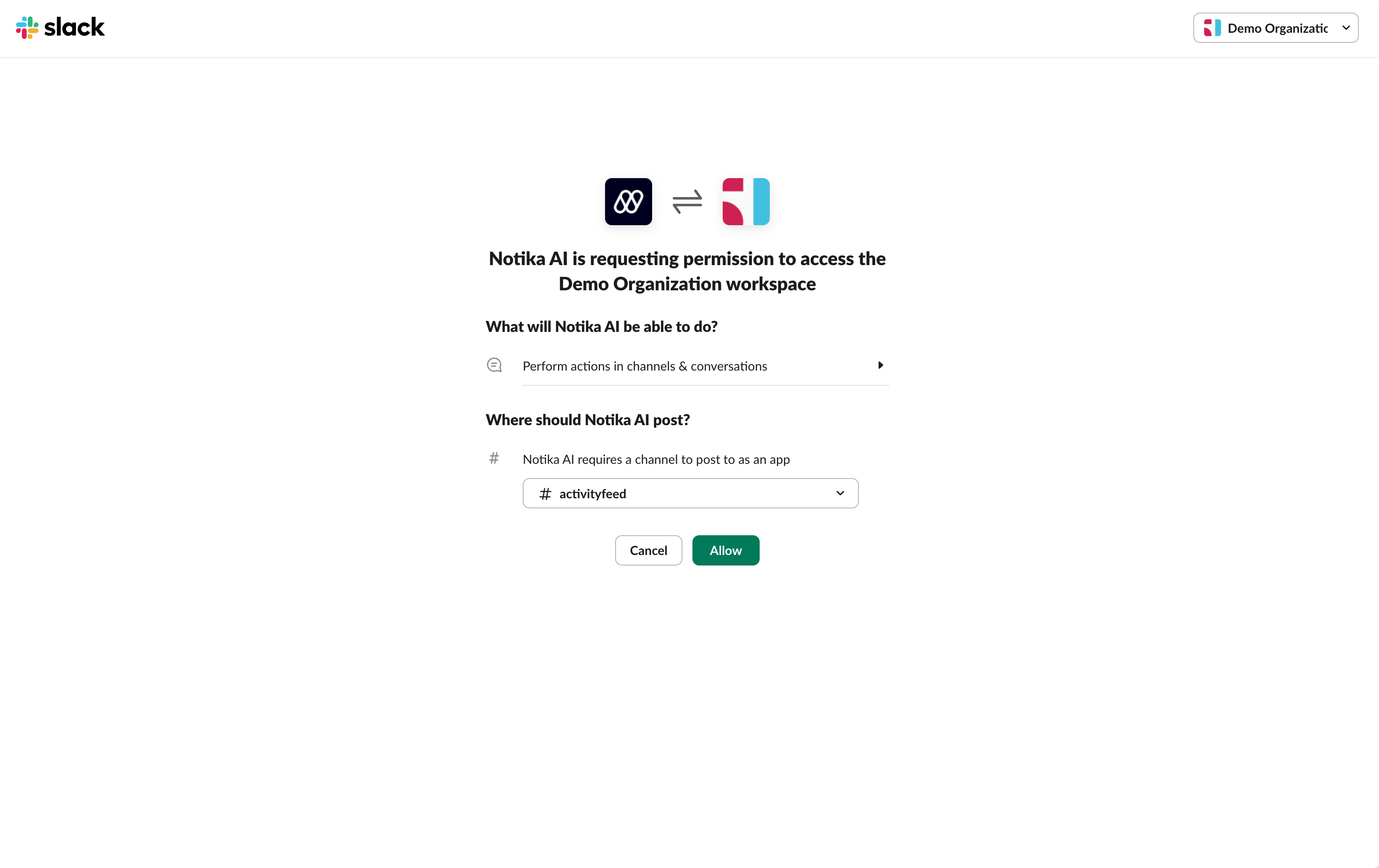 * After OAuth, Dreamlit automatically gives the channel a name combining your
workspace and channel name (e.g., "My Workspace #general").
* You can rename it in **Settings** → **Notification Channels** if desired.
That's it! Now, you can select this channel to send messages to in a Dreamlit
workflow.
* After OAuth, Dreamlit automatically gives the channel a name combining your
workspace and channel name (e.g., "My Workspace #general").
* You can rename it in **Settings** → **Notification Channels** if desired.
That's it! Now, you can select this channel to send messages to in a Dreamlit
workflow.