> ## Documentation Index
> Fetch the complete documentation index at: https://notikaai.mintlify.site/llms.txt
> Use this file to discover all available pages before exploring further.
# Managing unsubscribed contacts
> How topics, unsubscribe links, and unsubscribe-all work in Dreamlit.
It's essential to properly manage your email send list when someone unsubscribes to maintain a good sender reputation.
Benefits of managing your unsubscribe list:
* reduces the likelihood of your emails being marked as spam
* improves deliverability for any other marketing or transactional emails you send
## How it works in Dreamlit
1. The AI Agent will automatically set the appropriate settings when it generates an email step, but you can always manually turn on **Allow unsubscribe** on any Send Email step and assign a **topic** yourself.
2. The AI Agent will also automatically add the unsubscribe link for the recipient in the email footer for you (using the `{{ dreamlit_unsubscribe_url }}` variable).
3. Dreamlit takes care of the rest: hosted unsubscribe pages and send-time filtering
If an email hard bounces or the recipient reports spam, Dreamlit will automatically add the recipient to your global suppression list and skip them on all future sends, regardless of whether **Allow unsubscribe** is turned on or not.
This helps maintain your sender reputation and maximize deliverability. You can always review and manage your global suppression list in the **Email Suppression Rules** settings page.
## When to turn on **Allow unsubscribe**
Turn on unsubscribe anytime you want to allow recipients to opt out of receiving those types of emails for you. If the email you're sending is marketing or promotional in nature, you should turn it on for compliance reasons, including GDPR and CAN-SPAM. Examples:
* **On**: newsletters, launches, promotions, reminders, digests, product announcements, and other subscription-style email
* **Off**: auth codes, receipts, billing notices, security alerts, and other operational messages recipients need to receive
The AI Agent will make its best guess basd on your intent and email content, but you should always review and adjust the settings as needed.
## Topics
A **topic** is a category that groups related emails together. When recipients unsubscribe, they unsubscribe from a topic.
Examples:
* `Product updates`
* `Newsletter`
* `Promotions`
* `Tips & onboarding`
Topics are reusable across broadcasts and workflows. This means:
* multiple workflows can share the same topic
* one workflow can use different topics for different emails
* recipients can unsubscribe from one kind of email without opting out of everything
The AI Agent will automatically set the appropriate topic for the email when it's generated - but only against an existing topic in the project. If you want to create a new topic, you can do so in the **Email Suppression Rules** settings page.
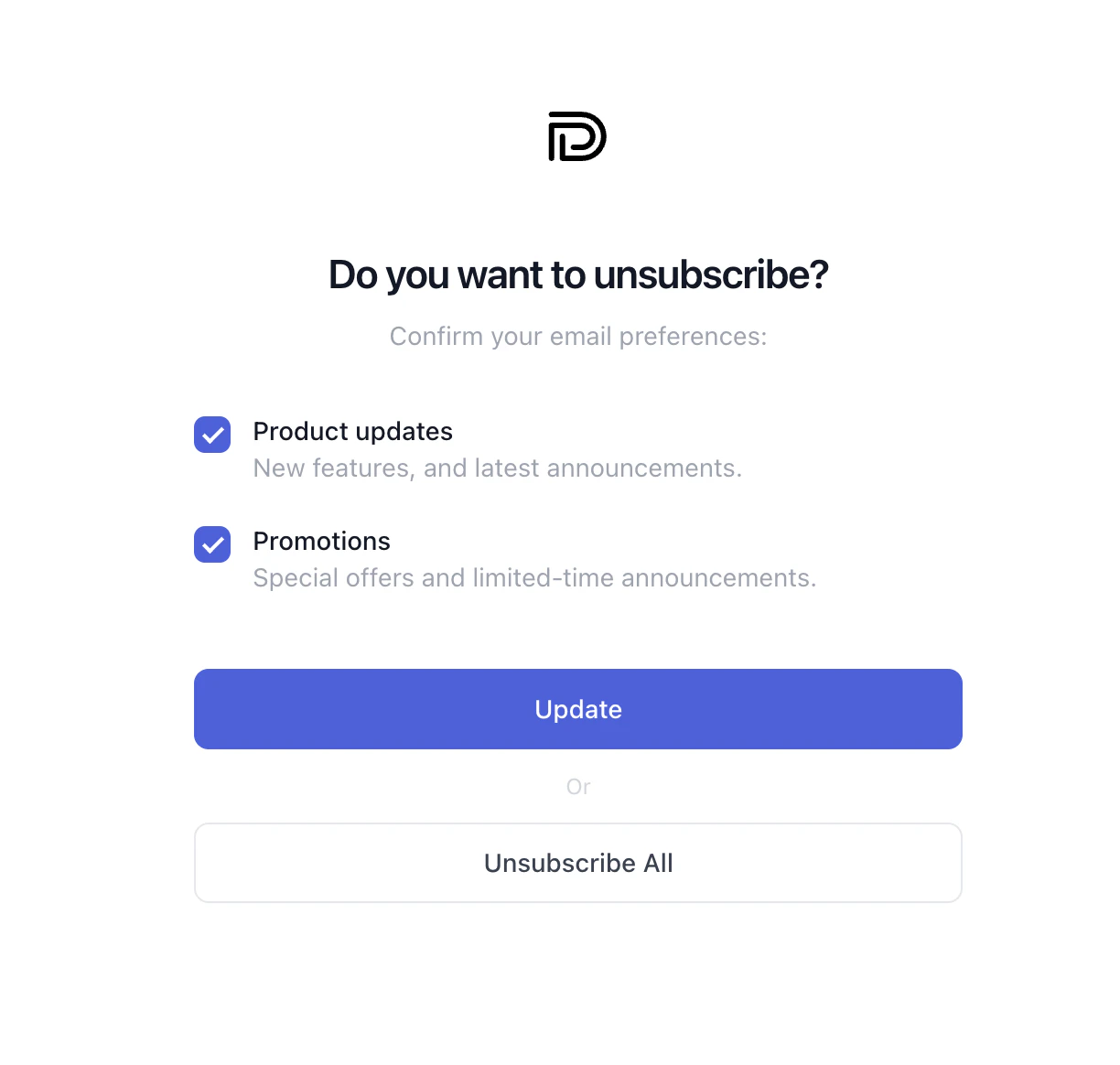
## What recipients see
When someone clicks the unsubscribe link, Dreamlit sends them to a hosted page where they can:
* review and manage all current optional topics for your project
* unsubscribe from all optional email for your project
 ## What Dreamlit handles automatically
Once a Send Email step has **Allow unsubscribe** turned on, Dreamlit handles the rest:
* hosted unsubscribe page
* topic-level opt-outs
* project-level unsubscribe-all
* email-client unsubscribe headers
* skipping opted-out recipients at send time
You don't need to build a preference center or filter recipients in your query.
Furthermore, if an email hard bounces or the recipient reports spam, Dreamlit will automatically add the recipient to your global suppression list and skip them on all future sends, regardless of whether **Allow unsubscribe** is turned on or not. To manage your global suppression list, check the **Email Suppression Rules** settings page.
## What you need to do
1. Turn on **Allow unsubscribe** for subscription-style email.
2. Pick the topic that best matches that email.
3. Add `{{ dreamlit_unsubscribe_url }}` anywhere in the body or footer.
4. Reuse the same topic for the same kind of message over time.
## Where unsubscribe data shows up
* **Workflow builder**: Send Email steps show their topic
* **Analytics**: each send shows the topic it was sent under
* **Email Suppression Rules**: manage global suppressions, review all unsubscribes, and manage custom topics plus opted-out recipients
## Best practices
* Use a small number of clear topics instead of creating a new one for every campaign
* Reuse topic names consistently so recipients understand what they are opting out of
* Turn on **Allow unsubscribe** by default for broadcasts and announcement-style email
* Leave it off for messages users must receive to use your product safely
## Related pages
* [Send Email](/docs/steps/send-email)
* [Broadcasts](/docs/workflow/broadcast)
* [Deliverability](/docs/resources/deliverability)
## What Dreamlit handles automatically
Once a Send Email step has **Allow unsubscribe** turned on, Dreamlit handles the rest:
* hosted unsubscribe page
* topic-level opt-outs
* project-level unsubscribe-all
* email-client unsubscribe headers
* skipping opted-out recipients at send time
You don't need to build a preference center or filter recipients in your query.
Furthermore, if an email hard bounces or the recipient reports spam, Dreamlit will automatically add the recipient to your global suppression list and skip them on all future sends, regardless of whether **Allow unsubscribe** is turned on or not. To manage your global suppression list, check the **Email Suppression Rules** settings page.
## What you need to do
1. Turn on **Allow unsubscribe** for subscription-style email.
2. Pick the topic that best matches that email.
3. Add `{{ dreamlit_unsubscribe_url }}` anywhere in the body or footer.
4. Reuse the same topic for the same kind of message over time.
## Where unsubscribe data shows up
* **Workflow builder**: Send Email steps show their topic
* **Analytics**: each send shows the topic it was sent under
* **Email Suppression Rules**: manage global suppressions, review all unsubscribes, and manage custom topics plus opted-out recipients
## Best practices
* Use a small number of clear topics instead of creating a new one for every campaign
* Reuse topic names consistently so recipients understand what they are opting out of
* Turn on **Allow unsubscribe** by default for broadcasts and announcement-style email
* Leave it off for messages users must receive to use your product safely
## Related pages
* [Send Email](/docs/steps/send-email)
* [Broadcasts](/docs/workflow/broadcast)
* [Deliverability](/docs/resources/deliverability)