> ## Documentation Index
> Fetch the complete documentation index at: https://notikaai.mintlify.site/llms.txt
> Use this file to discover all available pages before exploring further.
# Brand styles
> Define your visual identity for AI-generated email templates.
Brand Styles let you save a project's logo, colors, fonts, and email styling so Dreamlit can generate messages that match your visual identity.
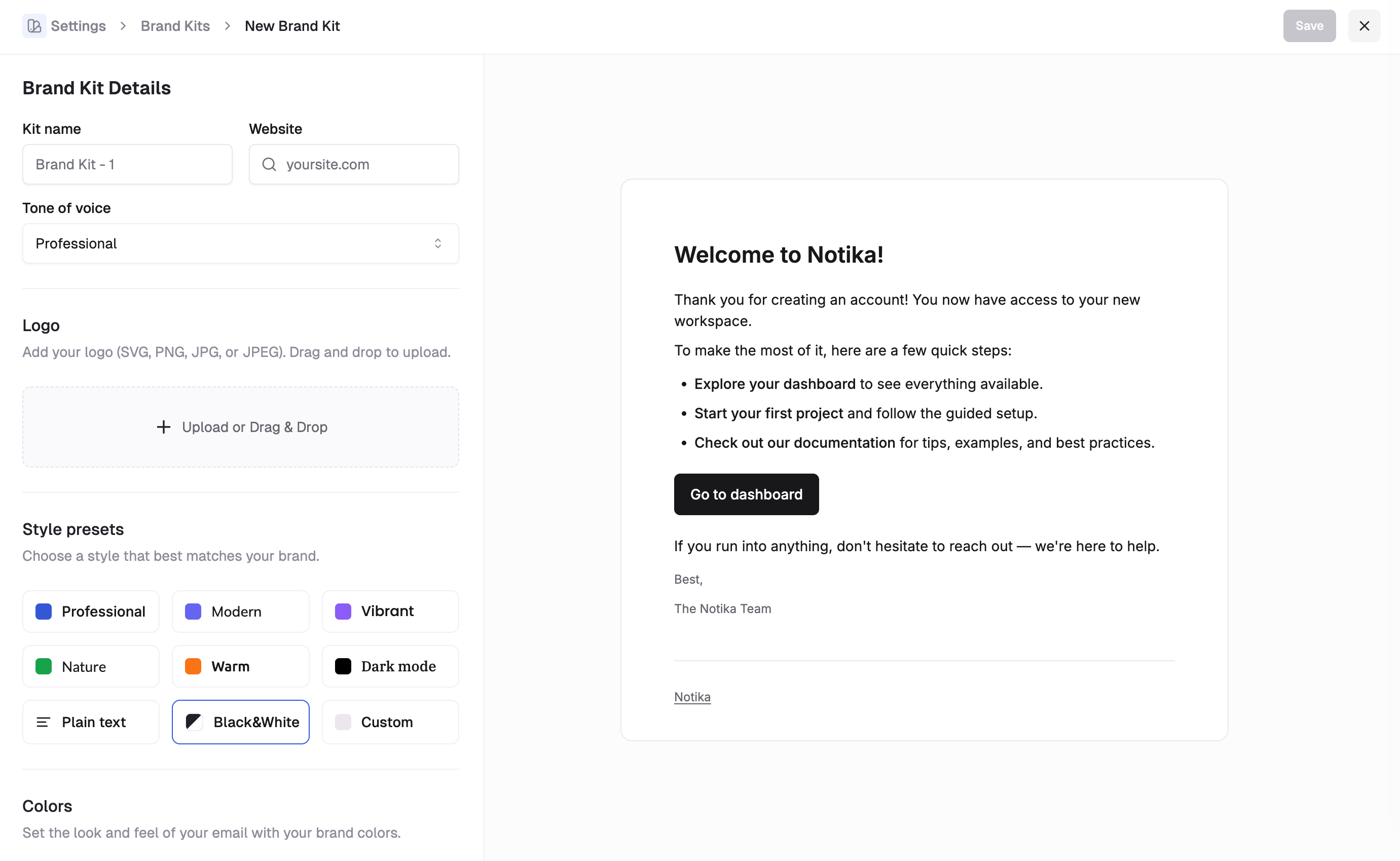 ## Setting up a Brand Style
1. Navigate to **Settings** → **Brand Styles**.
2. Create a new Brand Style or edit the default one.
3. Customize your settings:
* **Brand details**: Set the brand name and logo.
* **Colors**: Define the palette Dreamlit should apply to email designs.
* **Typography**: Pick heading and body fonts.
* **Preview templates**: Review light and dark examples before saving.
## Using Brand Styles
When you pick a different email design, Dreamlit can attach a Brand Style to the selected template. The AI uses both the template design and the selected Brand Style to recreate the current email step.
You can also choose **No brand style** when you want the selected template's default styling to stay intact.
## Setting up a Brand Style
1. Navigate to **Settings** → **Brand Styles**.
2. Create a new Brand Style or edit the default one.
3. Customize your settings:
* **Brand details**: Set the brand name and logo.
* **Colors**: Define the palette Dreamlit should apply to email designs.
* **Typography**: Pick heading and body fonts.
* **Preview templates**: Review light and dark examples before saving.
## Using Brand Styles
When you pick a different email design, Dreamlit can attach a Brand Style to the selected template. The AI uses both the template design and the selected Brand Style to recreate the current email step.
You can also choose **No brand style** when you want the selected template's default styling to stay intact.